Two-panel SHO narrowband, using MosaicByCoordinates and PhotometricMosaic. Documented against RCW 108, August 2026.
Reference project
RCW 108, 2 panels, SHO narrowband
Working directory
C:/PixInsight/2026-08-01_RCW 108/
Date documented
August 2026
PixInsight version
1.9.4
Equipment and data
Telescope
AT12IN (300mm Newtonian), 1156.6 mm focal length
Camera
ZWO ASI2600MM Duo, 3.76 µm pixels, mono
Mount
Paramount ME
Capture
NINA
Image scale
0.671 ″/px
Sub exposure
300 s, bin 1×1, 6248×4176
Panel layout: stacked in declination (panel 1 north, panel 2 south), roughly 22% overlap (~10′ against a 46′ short axis).
Frame counts:
Filter
Panel 1
Panel 2
H
16
20
O
11
10
S
12
18
Panels were shot on consecutive nights (1 and 2 August) on opposite sides of the pier — panel 1 solved at 179.600° rotation, panel 2 at −0.696°. Reprojection handles this transparently.
Approach
This workflow uses MosaicByCoordinates + PhotometricMosaic, not the older
GradientMergeMosaic + dnaLinearFit route described in most tutorials online.
Why:
PhotometricMosaic derives the brightness scale factor photometrically from stars
in the overlap, so the separate linear-fit step disappears entirely.
MosaicByCoordinates uses each panel's own astrometric solution, so no synthetic
star field (CatalogStarGenerator) is needed. That whole branch of the classic
tutorial is only necessary for larger mosaics.
GradientMergeMosaic predates PixInsight's astrometry infrastructure and is prone
to seam artefacts and pinched stars.
MultiscaleGradientCorrection (MGC) is not required and was not used here. MGC
corrects each panel's absolute gradient against the MARS all-sky reference;
PhotometricMosaic models the relative gradient between panels from their overlap.
They're independent. MARS narrowband coverage in the far southern sky is patchy,
so MGC may not be viable for SHO targets in Ara/Norma anyway — worth testing on a
single panel before restructuring around it.
Do the mosaic per-filter in mono, then combine to SHO at the end. Combining
first would mean matching intensities across every channel and every panel
simultaneously.
Note: PhotometricMosaic's own dialog recommends NormalizeScaleGradient (NSG) during
preprocessing. This run did not use NSG — WBPP plus GradientCorrection was used
instead. Results were good, but NSG is the thing to try if seams give trouble.
Prerequisites
PhotometricMosaic, SplitMosaicTile and TrimMosaicTile were removed from the
official PixInsight distribution in 1.8.9-2 build 1588. They're still maintained
by John Murphy. Add his repository:
https://pixinsight.astroprocessing.com/
via Resources → Updates → Manage Repositories.
Filename suffix chain
The naming accumulates through the workflow and is self-documenting:
_autocrop        WBPP autocrop output — then OVERWRITTEN with BXT/GC/NXT results
_ast             + astrometric solution (batch ImageSolver)
_ra              + reprojected onto common mosaic grid (MosaicByCoordinates)
_trim            + edges eroded (TrimMosaicTile)
Part 1 — Calibration and integration
Assumes Steps 1–2 of the standard workflow are done: the process icon set is
loaded, and the light frames have been culled in Blink. Both apply identically to
a mosaic — cull each panel's frames separately.
1Organise light frames by panel
Create one folder per panel and sort the lights into them:
PANEL_1/
PANEL_2/
Everything downstream runs per-panel, so keeping them separate from the start
prevents frames from different pointings being mixed into one integration.
2WBPP grouping keyword
Enable Grouping Keywords and add:
Keyword
Pre
Post
PANEL
✓
✓
Both Pre and Post ticked keeps the panels separate through calibration/registration
and through integration, producing one master light per panel per filter.
Requires a PANEL keyword in the FITS headers (written by NINA from the sequence).
3Registration reference image
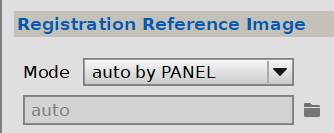
Set Registration Reference Image → Mode: auto by PANEL, file field left on
auto.
This picks a separate reference frame within each PANEL group. A single global
reference would sit outside the frame for the other panel and registration would
fail.
4Verify the grouping
The LIGHT tab should show one row per filter × panel — six rows for 3 filters ×
2 panels. If only three rows appear, the PANEL keyword isn't being read.
Other settings this run: bias off, darks and flats applied, cosmetic correction
AUTO (10), output pedestal AUTO (0.01%).
5Locate the masters
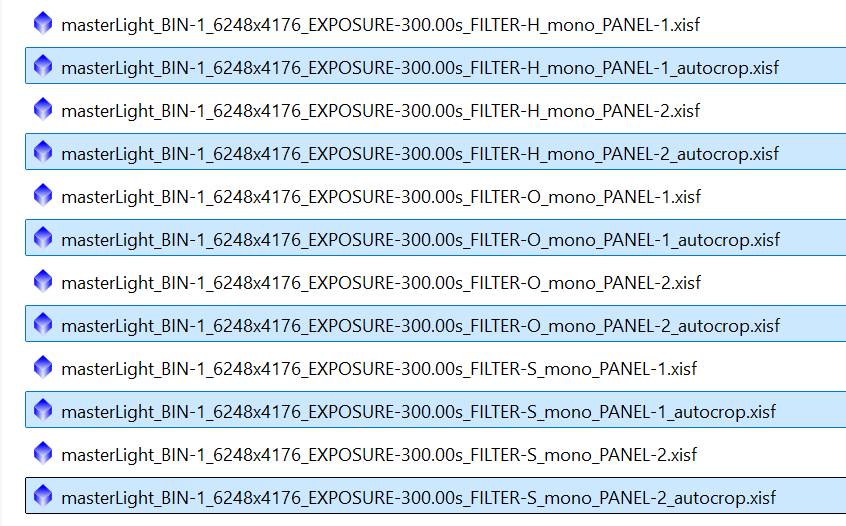
WBPP writes 12 files to master/ — six masters plus an _autocrop variant of each.
Use the _autocrop files. The ragged dither/registration borders are already
trimmed. Uncropped versions carry partial-coverage edge pixels that would poison
the overlap region.
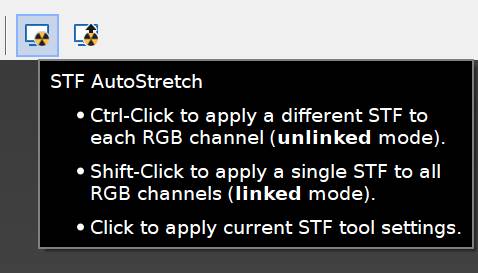
Each _autocrop file opens as two images. Apply STF AutoStretch (the
nuclear-symbol button) to see which one has data; close the empty one.
STF button reference:
- Click — apply current STF tool settings
- Shift-Click — single STF across all RGB channels (linked)
- Ctrl-Click — separate STF per channel (unlinked)
Mono data, so a plain click.
6aArrange the windows
Tile the six views in a grid — columns by filter, rows by panel:
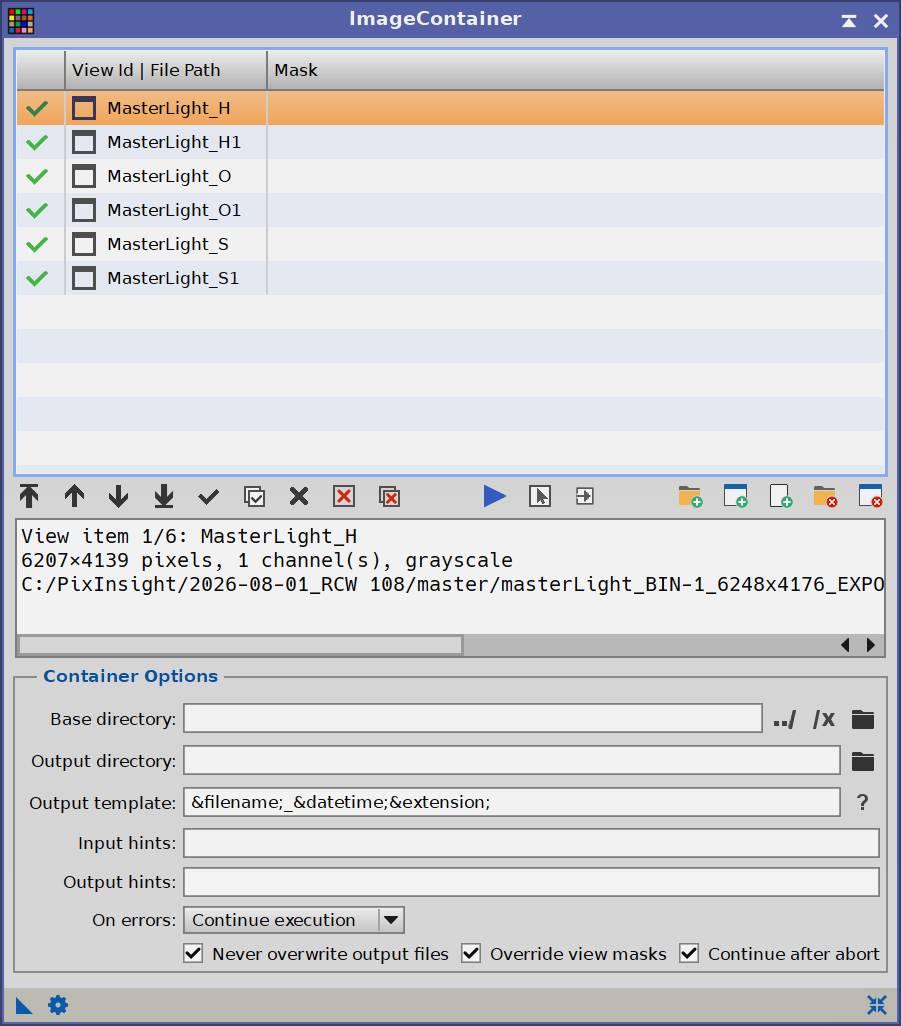
Gotcha — view ID ambiguity. PixInsight strips the panel number from the view
ID on open. The 1 suffix means "second image opened with this name", not
"panel 2". It only corresponds to panel 2 because the files were opened in panel
order. Verify against the file path in the ImageContainer info panel, or rename
the views.
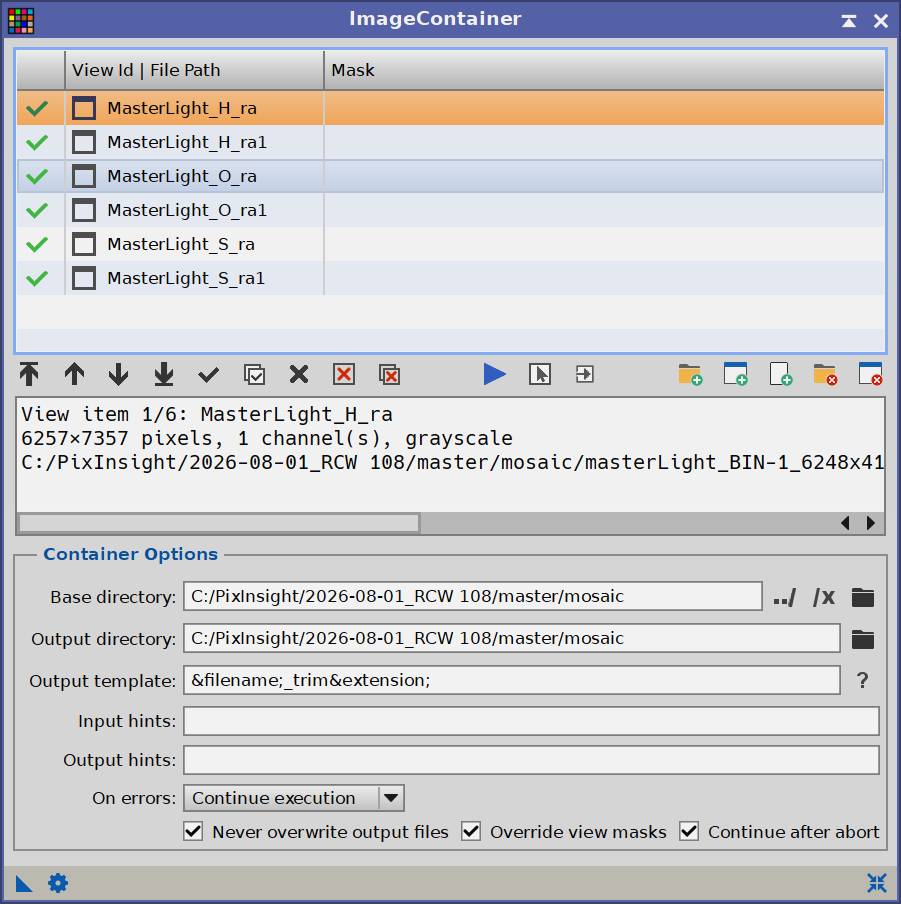
7Load into an ImageContainer
Add the six views to a new ImageContainer, all ticked. Container options at
defaults.
8BlurXTerminator
Drag the ImageContainer's triangle (new instance) onto the BXT dialog to apply
to all six at once.
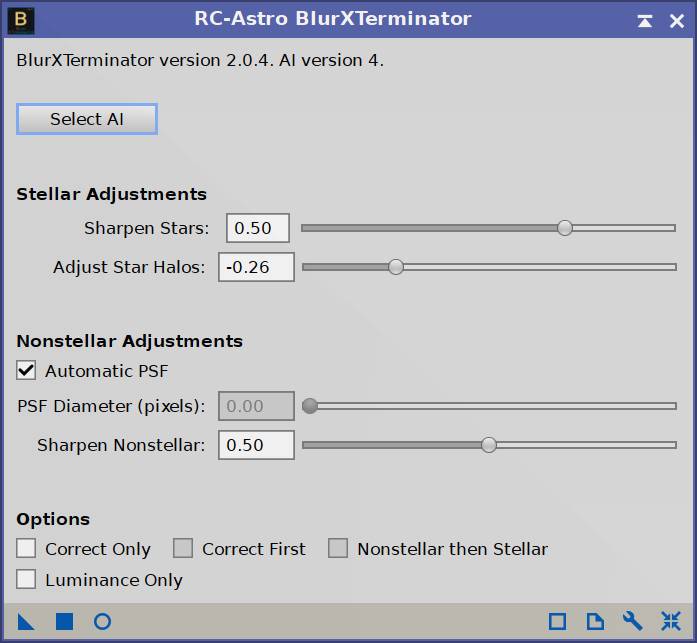
BXT v2.0.4, AI v4:
Setting
Value
Sharpen Stars
0.50
Adjust Star Halos
−0.26
Automatic PSF
✓
Sharpen Nonstellar
0.50
Correct Only / Correct First / Nonstellar then Stellar
☐
Luminance Only
☐
BXT runs on linear data, so this belongs here — before stretching, before the join.
Applying via the container also guarantees both panels get identical parameters,
which helps the seam blend later.
9GradientCorrection
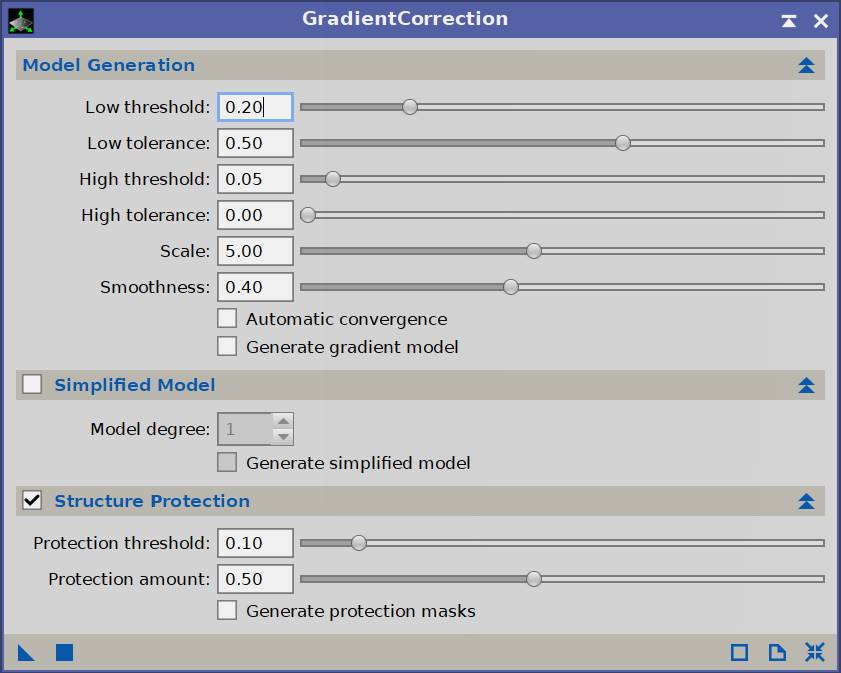
Same technique — drag the container triangle onto the dialog.
Setting
Value
Low threshold
0.20
Low tolerance
0.50
High threshold
0.05
High tolerance
0.00
Scale
5.00
Smoothness
0.40
Automatic convergence
☐
Generate gradient model
☐
Simplified Model
☐ (degree 1)
Structure Protection
✓ threshold 0.10, amount 0.50
Why this matters for a mosaic: each panel was shot at a different pointing and
carries its own sky gradient from a different altitude/azimuth. Flattening both
panels independently before joining is what makes the seam blendable. A merge
tool can smooth a residual step but can't fix two panels with gradients running in
different directions.
10NoiseXTerminator
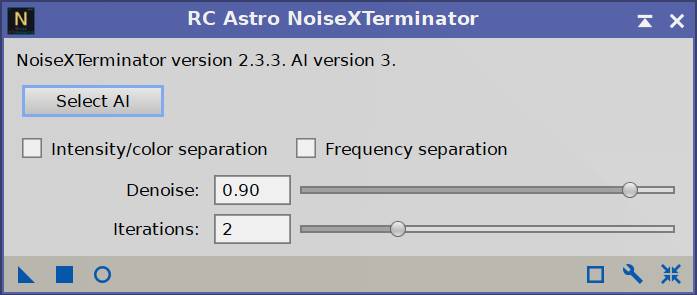
Same technique. NXT v2.3.3, AI v3:
Setting
Value
Intensity/color separation
☐
Frequency separation
☐
Denoise
0.90
Iterations
2
Linear-stage order is BXT → GradientCorrection → NXT, applied identically to
all six via the container.
11Save, overwriting the _autocrop files
Saved back over the original _autocrop filenames.
Consequence: after this step, _autocrop no longer means "WBPP's raw
autocrop output" — it means "processed". Easy to forget. Consider saving under
new names instead.
Part 3 — Astrometry
12Check whether the panels are already solved
WBPP may have plate-solved the masters already, in which case ImageSolver is
unnecessary.
Gotcha — the coordinate readout is not a reliable test. Hovering the cursor
over a solved image should show RA/Dec in the status bar, but it did not in this
session even though the images were correctly solved. Considerable time was lost
chasing this.
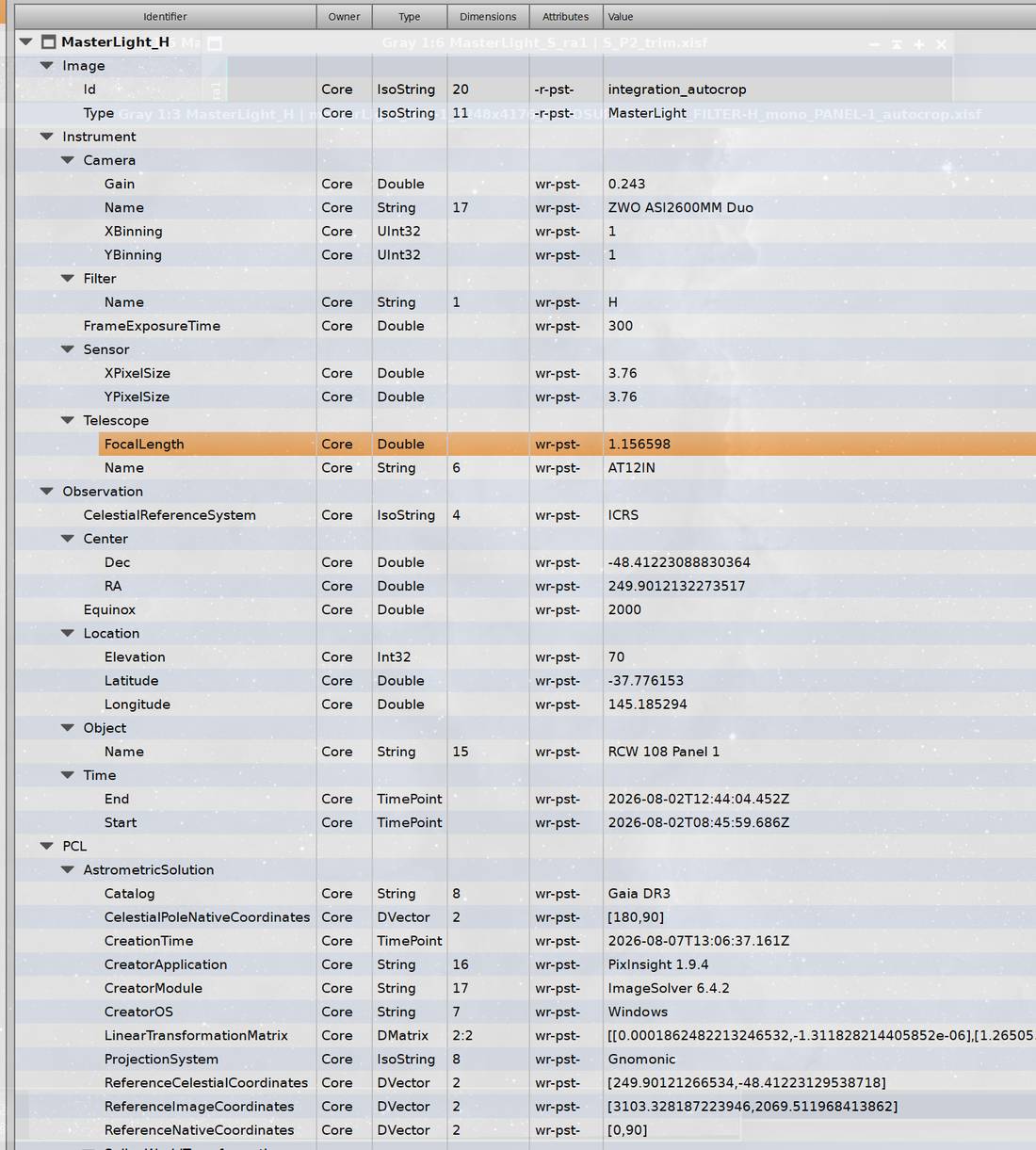
Check XISF properties instead. Right-click the image → the properties viewer.
Look for the PCL/AstrometricSolution tree. If Catalog, LinearTransformationMatrix,
ReferenceCelestialCoordinates etc. are present, it's solved.
Other functional test: Script → Render → AnnotateImage. If it renders, the
solution is real.
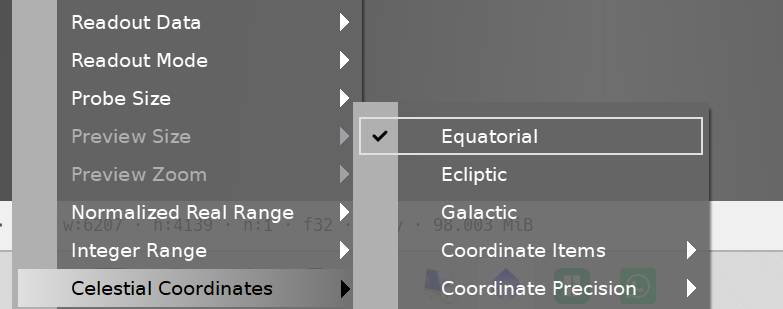
The Celestial Coordinates readout menu (below) being correctly configured is
not sufficient — it was set to Equatorial here and still showed nothing.
Useful XISF properties to know:
Instrument/Sensor/XPixelSize          3.76
Instrument/Telescope/FocalLength      1.156598   ← METRES, not mm
Instrument/Camera/XBinning            1
Observation/Center/RA, /Dec
PCL/AstrometricSolution/...
The astrometry survived WBPP autocrop and the BXT/GC/NXT chain intact.
13Batch ImageSolver
Run over the six processed files. Output gets an _ast suffix.
Check control point counts and residuals in the console. A healthy solve
reports both. This run:
File
Control points
Residuals (px)
H P1
9532
0.305 / 0.388
H P2
6846
0.422 / 0.458
O P1
8974
0.926 / 1.297
O P2
3836
none reported
S P1
18910
0.953 / 1.211
S P2
6780
0.415 / 0.490
Warning sign: a solve reporting no surface residuals, with spline lengths
equal to the control point count, indicates an unreduced and unvalidated fit.
O panel 2 shows this — it's the thinnest data (10 frames) so has fewest detectable
stars. If registration softness appears in the overlap for one filter only, this
is the first suspect, and the fix is re-solving with a lower star detection
sensitivity threshold — not blaming the merge tool.
Part 4 — Reprojection onto a common grid
14MosaicByCoordinates
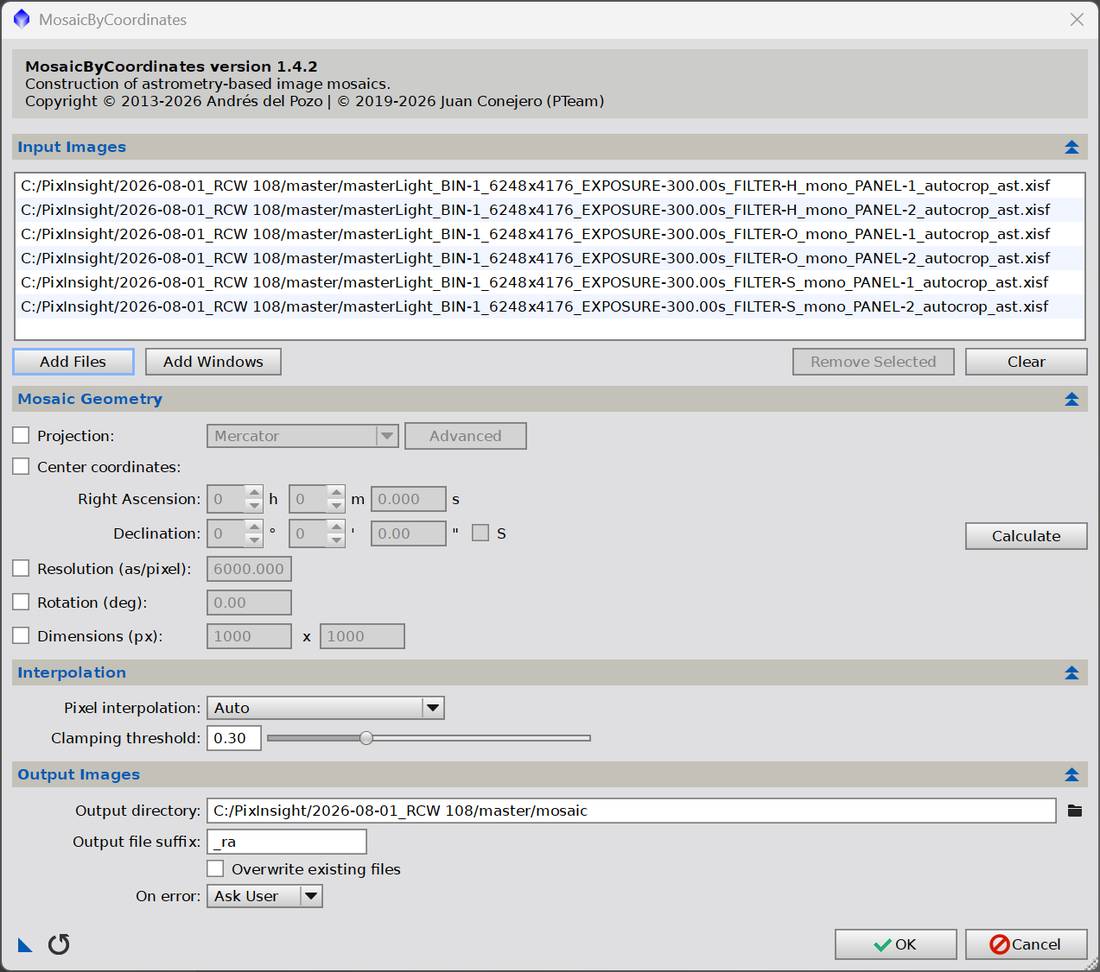
Script → Mosaic → MosaicByCoordinates (v1.4.2).
Add all six _ast files in one run, not one filter at a time.
This is the single most important decision in the workflow. With Mosaic
Geometry left on auto, the script computes the output frame from whatever inputs
it's given. Running each filter separately produces frames that differ by a pixel
or two — enough to break channel combination at the end. Running all six together
guarantees an identical grid.
Observed: the H-only trial run produced 6257×7356; the all-six run produced
6257×7357.
Settings:
Section
Setting
Mosaic Geometry
All unchecked — derived from the panels' astrometric solutions
Record the final alpha / delta / width / height line from the optimisation
loop — that's the frame everything downstream inherits.
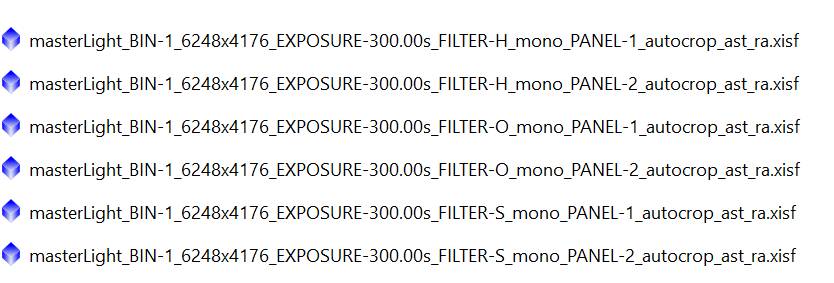
Six _ra files result, one per input:
Gotcha — FITS keywords are regenerated wrongly here
The console reports 107 image properties in, 17 out. Reprojection discards most
of the XISF property tree, including Instrument/Sensor/XPixelSize and
Instrument/Telescope/FocalLength, and regenerates the FITS keywords from the
astrometric solution.
A plate solve constrains image scale only — focal length and pixel size are
degenerate within it, only their ratio is determined. So the regenerated values
come out as XPIXSZ 7.40 µm / FOCALLEN 2277 mm: both wrong by ~2×, but
preserving the correct 0.671 ″/px.
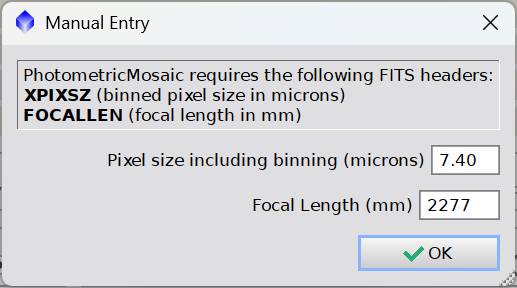
PhotometricMosaic reads these keywords and will offer them. Enter the real
values manually: 3.76 µm / 1156 mm.
Capture-time metadata is correct — NINA and the camera driver are not at fault.
The loss happens at reprojection.
What the output should look like
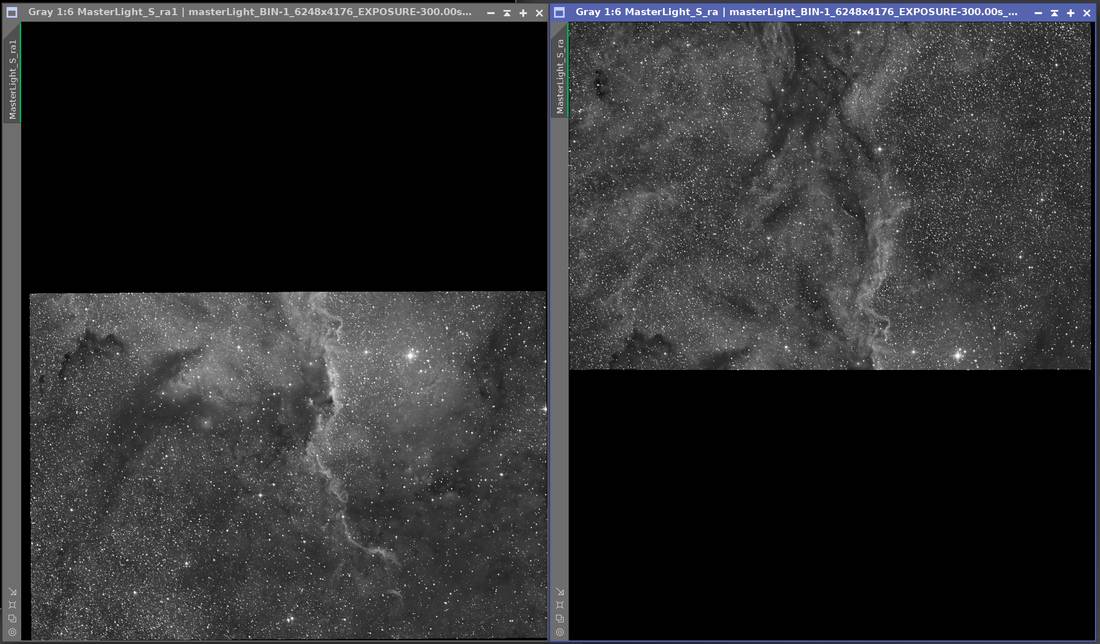
Each panel sits in its own portion of the common frame with black filling the rest —
panel 1 occupying the top (left window), panel 2 the bottom (right window),
overlapping in the middle. The meridian flip is already resolved: the shared
nebulosity lines up in sky orientation even though the panels were captured 180°
apart.
Note the data/black boundary is slightly angled and ragged — that's what the next
step removes.
Part 5 — Trimming
15TrimMosaicTile
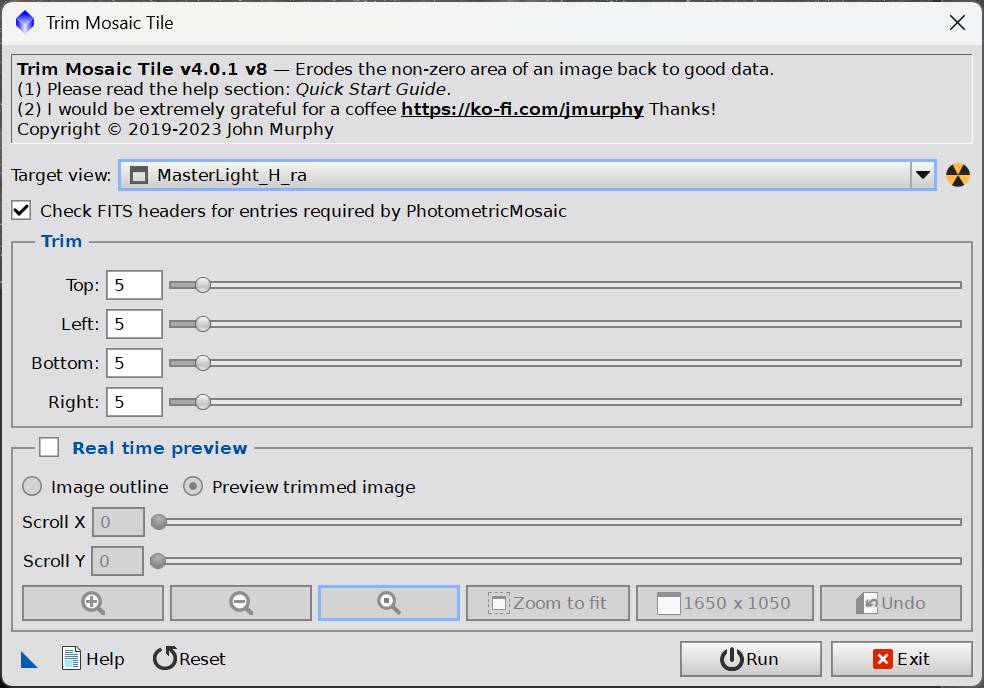
Script → Mosaic → TrimMosaicTile (v4.0.1).
PhotometricMosaic requires hard edges — a clean transition from valid data to
exact zero. Reprojection leaves interpolated partial-coverage pixels around the
boundary that are non-zero but not valid.
This step is view-based, not file-based — unlike MosaicByCoordinates either
side of it. Target view is a dropdown of open images; there's no file list and no
output directory. Open the six _ra files, run it six times, save six times.
Settings:
Setting
Value
Top / Left / Bottom / Right
5 px each (defaults)
Check FITS headers for entries required by PhotometricMosaic
✓
5 px out of 6257 is negligible; the tool errs safe deliberately. Leave the header
check ticked — it's a free preflight.
Gotcha — trimmed edges look stepped, not straight. This is normal and cannot
be fixed by increasing the trim value. TrimMosaicTile erodes inward from the
existing boundary, so it reproduces whatever shape that boundary had. The boundary
is stair-stepped because reprojection rotated each panel by a fraction of a degree
(0.6° across 6257 px ≈ 65 px of drift, rendered as integer-pixel steps).
Increasing the trim moves the step; it doesn't remove it.
Hard edges are the requirement, not straight ones.
Zoomed view of a trimmed edge — hard, but stepped. This is correct.
Gotcha — ImageContainer cannot batch this. ImageContainer is a target list
for a process instance dragged onto it; with no process attached, its ▶ button
just activates the selected view ("Activate view / open file"). There is no
standalone "write all views to disk" function. Save the six manually
(File → Save As).
Setting Output directory and template looks like it should batch-save. It
doesn't — the container needs a process instance dragged onto it to do anything.
Save with short, unambiguous names — H_P1_trim, H_P2_trim, O_P1_trim, etc. —
because these get picked out of dropdowns next.
Part 6 — The join
16PhotometricMosaic
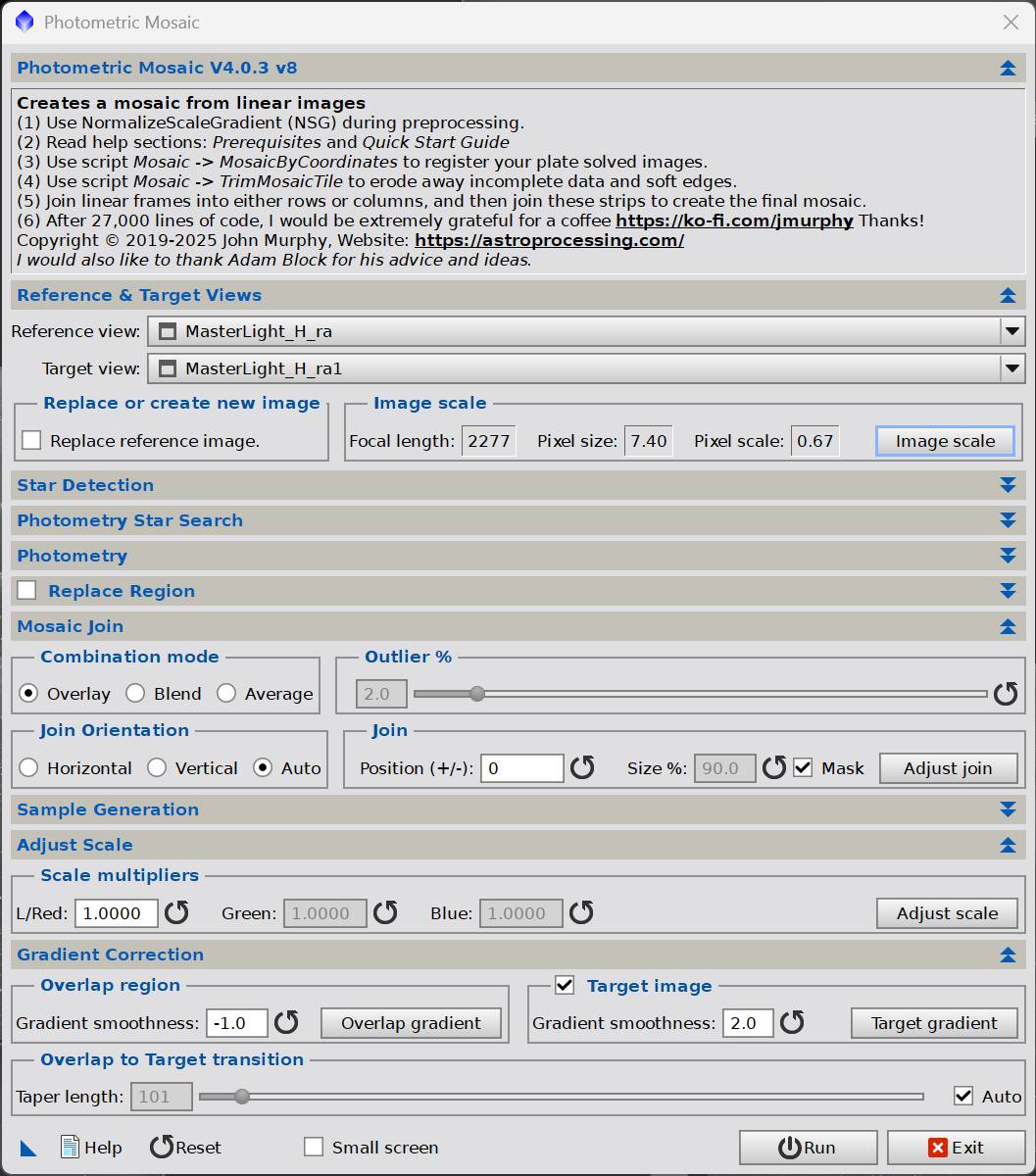
Script → Mosaic → PhotometricMosaic (v4.0.3). Also view-based.
Three separate runs, one per filter. Reference and target must be the same
filter — the scale factor is derived photometrically from stars in the overlap, and
a cross-filter comparison would be meaningless. Cross-filter matching happens later
at the palette stage. The three mosaics stay on the common grid from Step 14, which
is what lets them combine without further registration.
Use the same panel as reference across all three filters.
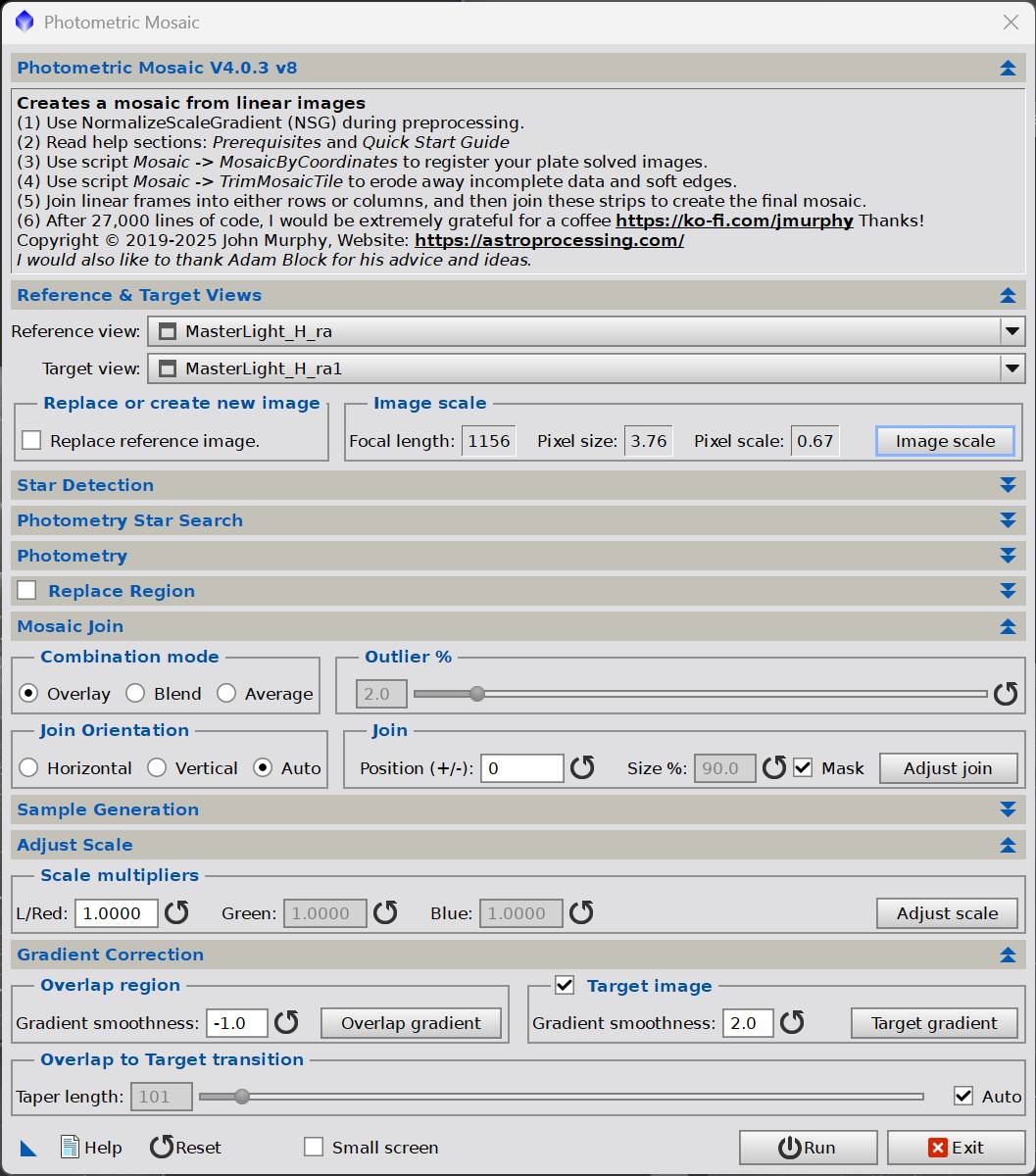
Image scale — must be corrected every run
Field
Offered
Enter
Pixel size (µm)
7.40
3.76
Focal length (mm)
2277
1156
Wrong values as offered — focal length 2277, pixel size 7.40.Corrected. Note the focal length field takes integers only.
The focal length field is integer only — 1156, not 1156.6. The rounding is
immaterial (pixel scale still resolves to 0.67).
See the Step 14 gotcha for why the offered values are wrong.
Settings (defaults, unchanged)
Section
Setting
Combination mode
Overlay
Outlier %
2.0
Join Orientation
Auto
Join Position
0
Mask
✓
Scale multiplier L/Red
1.0000
Gradient smoothness — overlap region
−1.0
Gradient smoothness — target image
2.0
Target image gradient correction
✓
Taper length
Auto
The dialog is modal — the main window can't be zoomed or interacted with while
it's open. Hit Exit to inspect the result; the mosaic and join mask remain as
normal windows.
Ctrl+K toggles the join mask on the result.
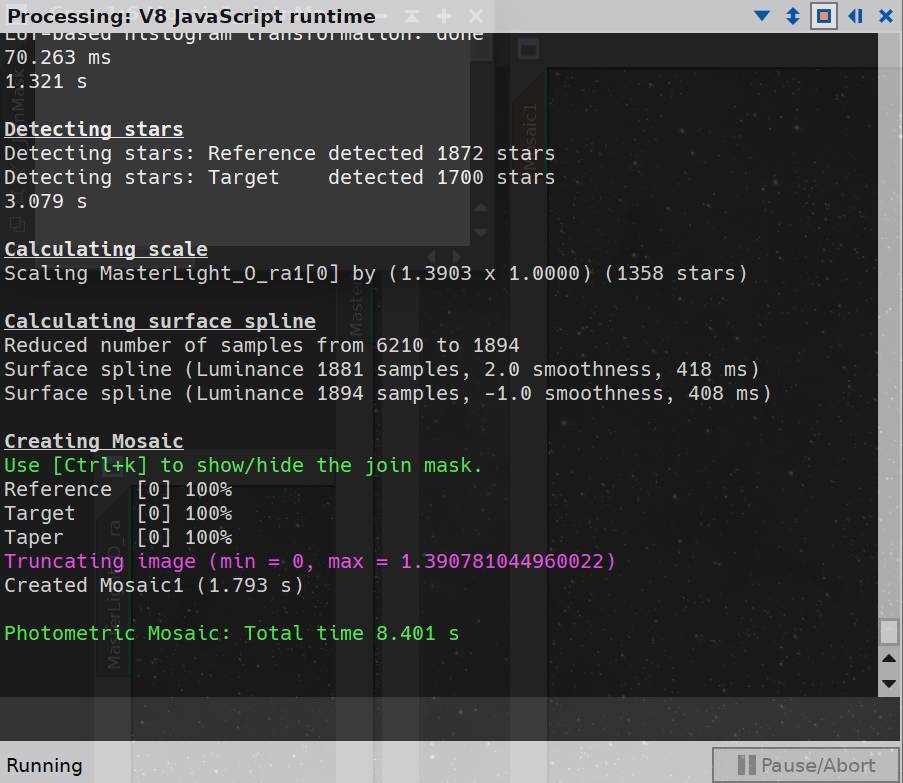
Results for this project
Filter
Ref stars
Target stars
Photometry stars
Scale factor
Time
H
—
—
1945
1.1599
8.08 s
O
1872
1700
1358
1.3903
8.40 s
S
6305
5388
1955
1.0996
7.97 s
Notes on these numbers:
~1900 photometry stars is a robust fit. The OIII run at 1358 is lower but still
ample — stars come through in OIII regardless of how faint the nebulosity is.
OIII needed a 39% brightness correction between panels, against 16% for H and
10% for S. Frame counts (11 vs 10) don't explain that; it's transparency or sky
conditions differing between the two nights. This is exactly the kind of
correction that was painful under the old linear-fit approach and which
PhotometricMosaic absorbs without intervention.
Star detection counts vary wildly by filter (S found 6305, H and O ~1900) while
photometry counts converge near 1900 after sample reduction.
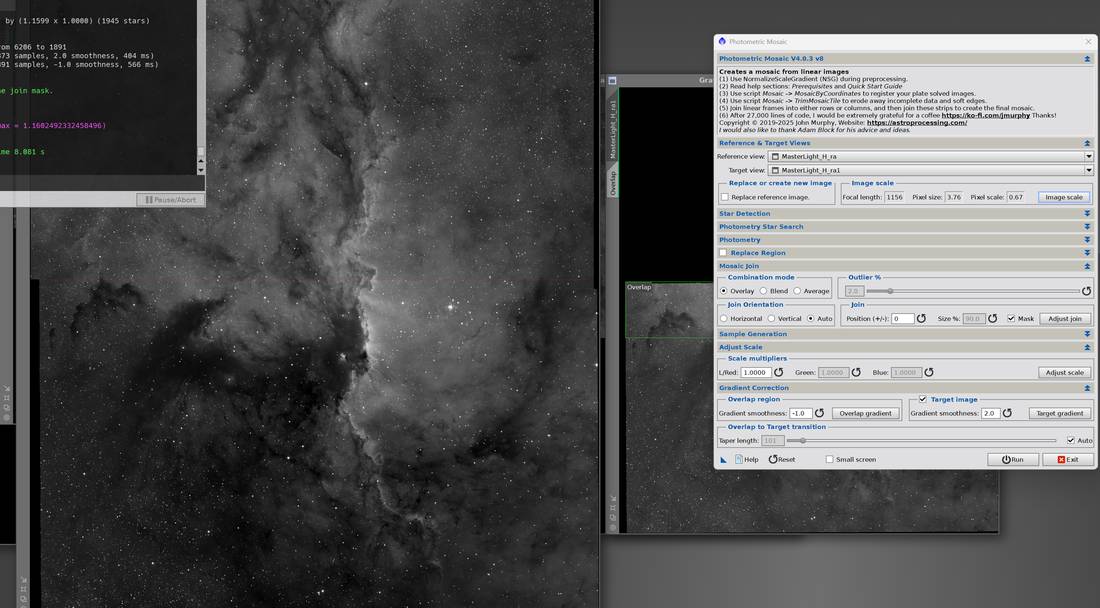
The Hα result. The red horizontal line marks the join — no brightness step, no
seam artefact, nebulosity and stars running straight through.
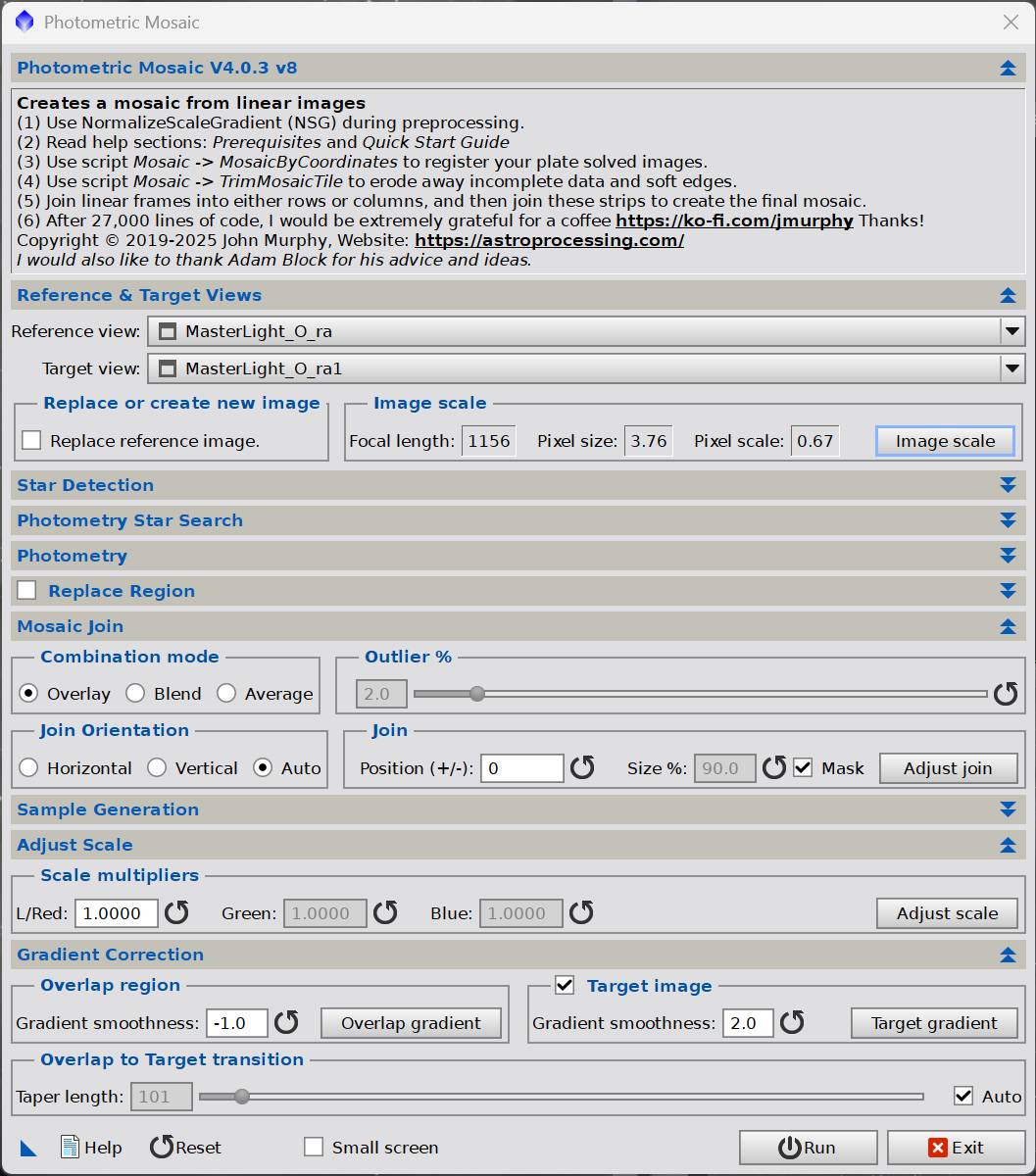
The OIII run uses identical settings with the O views selected:
If the join isn't clean, the first thing to change is Mosaic Join → Combination
Mode: try Blend or Average instead of Overlay.
17Rename the mosaic views
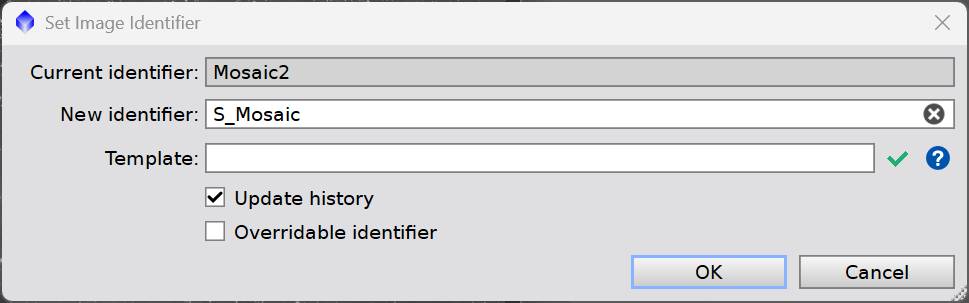
PhotometricMosaic outputs generic identifiers in run order. Double-click the view
identifier in the title bar (or Image → Set Image Identifier):
Current
New
Mosaic
H_Mosaic
Mosaic1
O_Mosaic
Mosaic2
S_Mosaic
Leave Update history ticked.
General principle, learned the hard way three times in this workflow:
PixInsight names views for its own convenience, not yours. Rename at every stage
where you'll later pick from a dropdown.
Part 7 — Crop
18DynamicCrop, applied identically to all three
All three mosaics must receive the exact same crop. Different dimensions will
break channel combination.
Open H_Mosaic with STF applied
Draw the DynamicCrop box excluding the ragged perimeter
Do not apply it to the image. Drag the DynamicCrop triangle onto the
PixInsight desktop background to save it as a process icon
Drag that desktop icon onto each of the three mosaics
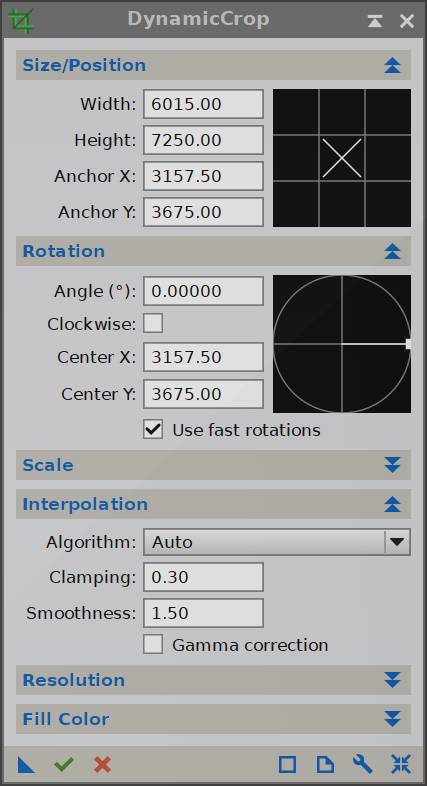
Crop used for this project:
Width × Height
6015 × 7250 (from 6257 × 7357)
Anchor
X 3157.50, Y 3675.00
Rotation
0.00
Interpolation
Auto, clamping 0.30, smoothness 1.50
That removes ~4% horizontally and ~1.5% vertically. Rotation left at zero — the
panel tilt is small enough that squaring up to sky isn't worth the extra loss.
Note the anchor is offset ~29 px right of frame centre, because the panels don't
overlap perfectly in RA and the valid region isn't centred.
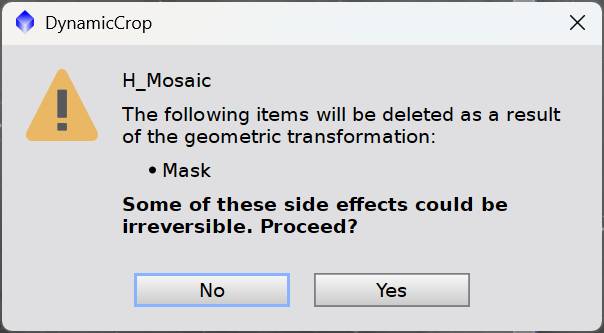
Prompt on applying:"The following items will be deleted as a result of the
geometric transformation: Mask." This is PhotometricMosaic's join mask —
inspection-only, safe to discard. Click Yes. Expect the prompt on all three.
Extreme top and bottom of the frame are single-panel regions. That's real data —
no need to cut it. What's being removed is the interpolated boundary.
19Rotate for composition
The mosaic comes out portrait (6015 × 7250) because the panels were stacked in
declination. Rotate for aesthetics.
Process → Geometry → FastRotation → Rotate 90° counter-clockwise
Use FastRotation, not Rotation, for 90/180° turns. FastRotation is a lossless
pixel remapping with no interpolation and no resampling — the pixel values are
untouched. Rotation would resample and soften the image for no benefit.
Result: 7250 × 6015 landscape.
20Re-solve
Run ImageSolver on the rotated mosaic.
The astrometric solution was already lost at the DynamicCrop step (Step 18), so
nothing is being discarded here — this re-establishes it on the finished image in
its final orientation.
Worth doing even if you don't plan to annotate: a solved final image can be
plate-matched against future data of the same target, and it embeds a permanent
record of what was actually imaged.
Do this after rotating, not before. Solving first would produce a solution
describing an orientation that no longer exists.
From here — back to the standard workflow
All three mosaics now share the same 6015 × 7250 grid, so nothing further is
mosaic-specific. They are still linear at this point. Continue with the normal
sequence:
StarXTerminator          → starless + stars for each channel (still linear)
PerfectPalettePicker     → starless channels into the chosen palette; DOES THE STRETCH
GeneralizedHyperbolicStretch  → optional, usually not needed
NarrowbandNormalization  → after GHS
NB to RGB Stars          → narrowband stars into natural RGB
Scripts → Toolbox → Combine Images    → recombine stars with starless
1.  Sort lights into PANEL_1 / PANEL_2 folders
2.  WBPP: Grouping keyword PANEL (Pre ✓ Post ✓)
3.  WBPP: Registration reference = "auto by PANEL"
4.  Verify 6 rows in LIGHT tab (3 filters × 2 panels)
5.  Take the _autocrop masters
6.  STF to find the real image in each; close the empty one
7.  Load all 6 into an ImageContainer
8.  Drag container triangle → BlurXTerminator
9.  Drag container triangle → GradientCorrection
10. Drag container triangle → NoiseXTerminator
11. Save
12. Confirm astrometric solution via XISF PROPERTIES (not cursor readout)
13. Batch ImageSolver if needed → _ast
14. MosaicByCoordinates — ALL SIX FILES IN ONE RUN → _ra
15. TrimMosaicTile, 5 px, each view individually, save → _trim
16. PhotometricMosaic ×3 (H+H, O+O, S+S) — FIX IMAGE SCALE TO 3.76 / 1156
17. Rename views to H_Mosaic / O_Mosaic / S_Mosaic
18. DynamicCrop via desktop icon, applied to all three
19. FastRotation — 90° counter-clockwise (lossless)
20. ImageSolver on the rotated mosaic
→ continue with the standard workflow from StarXTerminator
Gotchas index
#
Gotcha
1
View IDs lose the panel number; _1 suffix means "opened second", not "panel 2"
2
Overwriting _autocrop files makes the suffix misleading
3
Cursor coordinate readout does not reliably indicate a solved image — check XISF properties
4
FocalLength in XISF properties is in metres
5
A solve reporting no surface residuals is unvalidated — treat with suspicion
6
Run MosaicByCoordinates on all filters at once or the grids won't match