PixInsight Standard SHO Workflow
This is my standard narrowband (SHO) workflow, from WBPP through to the finished image. Companion to the mosaic runbook.
Part 1 — Preparation
1Set up the process icon workspace
Do this once, not per project. Install the scripts and processes the workflow depends on, arrange them as icons on the PixInsight workspace in the order they're used, then save the set so it can be reloaded next session.
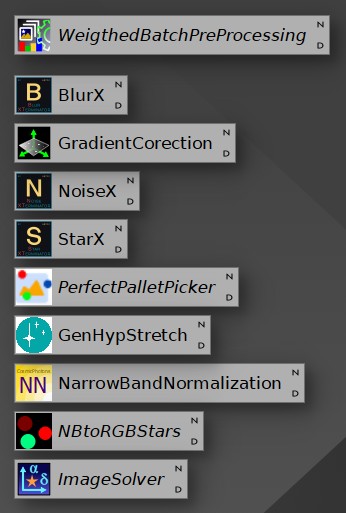
| Icon | Tool | Stage |
|---|---|---|
| Blink | Blink | before WBPP — frame culling |
| WeightedBatchPreProcessing | WeightedBatchPreProcessing | linear |
| BlurX | BlurXTerminator | linear |
| GradientCorection | GradientCorrection | linear |
| NoiseX | NoiseXTerminator | linear |
| StarX | StarXTerminator | linear |
| PerfectPalletPicker | PerfectPalettePicker | stretches here |
| GenHypStretch | GeneralizedHyperbolicStretch | non-linear |
| NarrowBandNormalization | NarrowbandNormalization | non-linear |
| NBtoRGBStars | NB to RGB Stars | non-linear |
| CombineImages | Combine Images | non-linear |
Arranging them in execution order turns the workspace itself into the checklist — you work down the column, and a skipped step is visible as an icon you never touched.
(Italicised entries are scripts rather than processes, which is why they render differently.)
Not kept as an icon: ImageSolver, launched from the Scripts menu. Worth considering adding it — see the note at Step 22.
Saving the set
Workspace right-click → Process Icons → Save Process Icons…
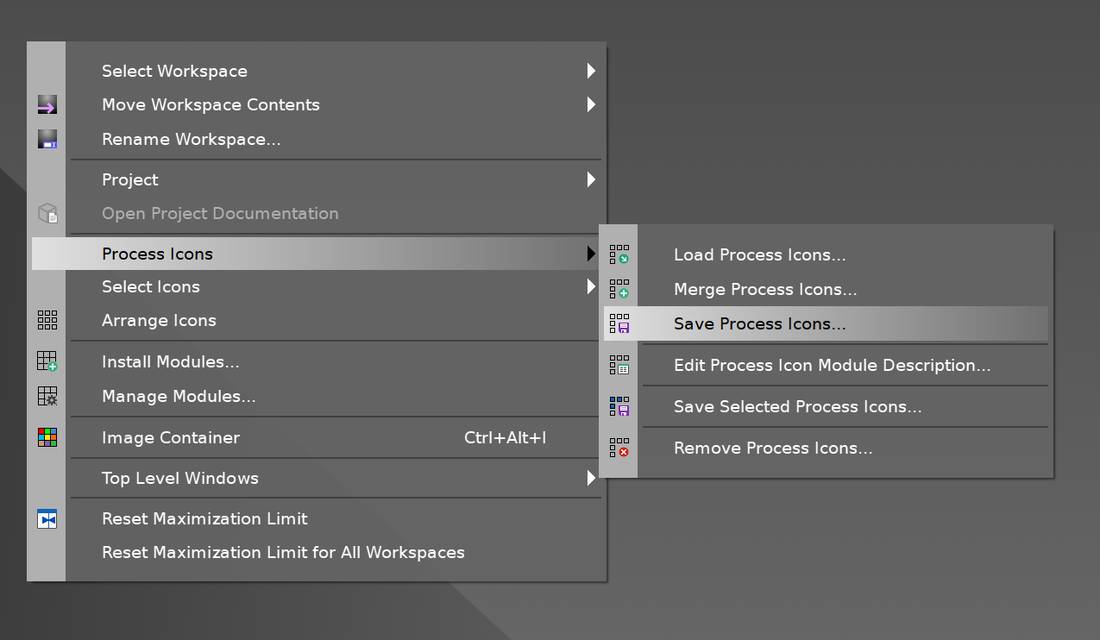
This writes the whole set — including the parameter values baked into each
instance — to a .xpsm file. Load Process Icons… brings them back in a new
session, so tuned settings survive restarts. You can also create a shortcut to the
.xpsm file on your desktop for easy access.
Part 2 — Frame culling
2Blink
Process → Image Inspection → Blink
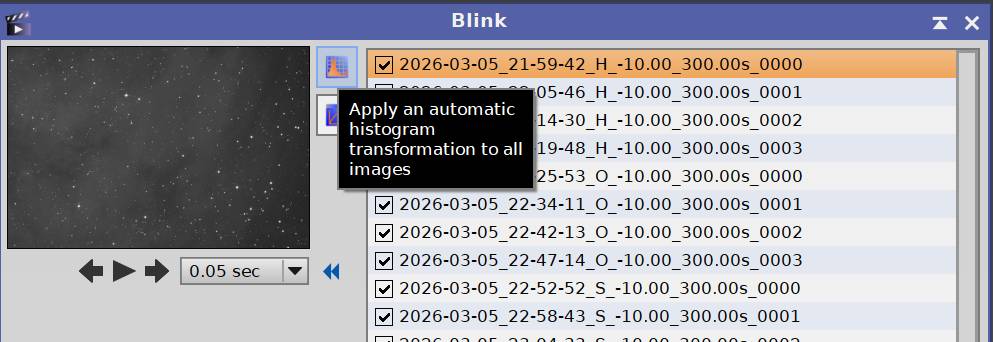
- Add all the light frames
- Click the top toolbar button — "Apply an automatic histogram transformation to all images" — so each frame is stretched individually
- Play through them (0.05 s default, adjustable) watching for defects
- Move rejects to a subfolder
- Delete them once the review is done
Individual stretch rather than one global stretch matters: sky brightness varies across a session, and a common stretch makes early and late frames hard to compare.
What to reject, and what to keep
| Defect | Verdict |
|---|---|
| Cloud | Always remove |
| Tree branches, tracking failures, distorted stars | Always remove |
| Bright satellite trails | Remove |
| Minor satellite trails | Survivable — integration rejection handles them — but remove anyway if you have plenty of subs |
| Slightly out of focus | Keep — BlurXTerminator recovers these |
| Badly out of focus | Remove |
The more subs you have, the more aggressive you can be. With 80 frames per filter you can bin the marginal ones; with 15, a flawed frame may beat losing 7% of your integration time.
The point is to leave only clean frames in the LIGHT folder. WBPP has its own bad-frame rejection, but culling by eye first is more reliable for obvious failures and keeps the measurement and weighting stages from working around junk.
Filenames are readable in the list
(2026-03-05_21-59-42_H_-10.00_300.00s_0000), so a run of consecutive bad frames
shows up as a time block — for example, drift out of focus, cloud or tracking issues.
Part 3 — Calibration and integration
3Launch and reset WBPP
Script → Batch Processing → Weighted Batch Preprocessing (WBPP)
Before loading a new project, click Reset:

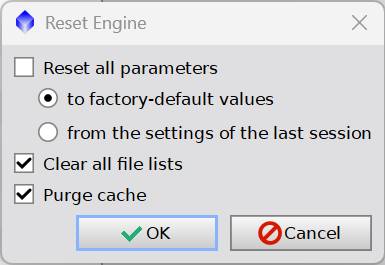
| Option | Setting |
|---|---|
| Reset all parameters | ☐ |
| — to factory-default values | ○ (selected but inactive) |
| — from the settings of the last session | ○ |
| Clear all file lists | ✓ |
| Purge cache | ✓ |
Leaving Reset all parameters unticked keeps tuned settings — grouping keywords, cosmetic correction, output pedestal — while clearing the previous project's frames and discarding stale calibration data. Same configuration, clean slate for files.
4Set the output directory
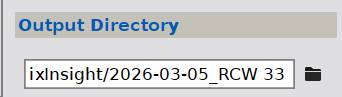
Point it at the project root — the folder containing the light frames, not a subfolder:
C:/PixInsight/2026-03-05_RCW 33
WBPP creates its own structure underneath, including the master/ folder. Nothing
needs creating in advance.
Naming convention: YYYY-MM-DD_TARGET — date of first session plus target.
5Add the frames
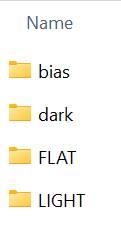
If the project root is clean — only calibration and light folders — use + Directory and add the whole tree at once.

bias/
dark/
FLAT/
LIGHT/
Folder name casing doesn't matter.
If the root contains anything else — previous WBPP output, stray files, a
master/folder from an earlier run — don't add the whole directory. Add folder by folder or file by file, so WBPP doesn't ingest processed data as raw frames. This is also why Purge cache and Clear all file lists matter at Step 3.
6Check the diagnostic messages
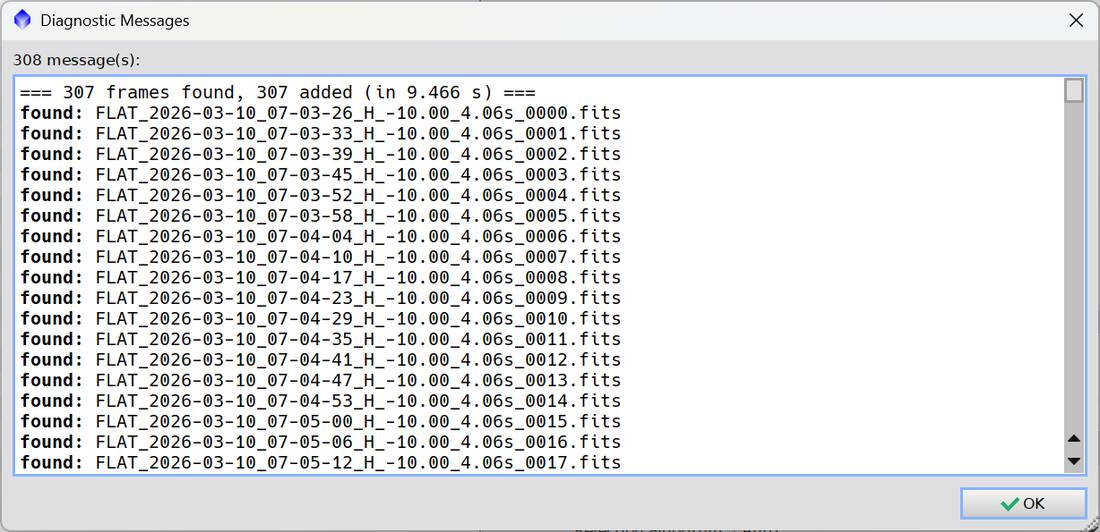
=== 307 frames found, 307 added (in 9.466 s) ===
Found should equal added. A mismatch means frames were rejected — usually unreadable files or headers WBPP couldn't classify — and you want to know which before running. Click OK.
The NINA filename convention makes problems visible at a glance:
FLAT_2026-03-10_07-03-26_H_-10.00_4.06s_0000.fits
type_date_time_filter_temp_exposure_sequence
A wrong filter or sensor temperature is readable directly from the list.
7Verify on the Post-Calibration tab
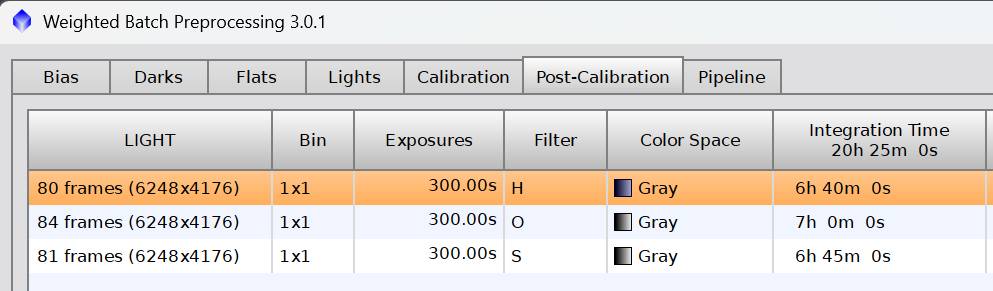
| Frames | Bin | Exposure | Filter | Colour | Integration |
|---|---|---|---|---|---|
| 80 (6248×4176) | 1×1 | 300.00s | H | Gray | 6h 40m |
| 84 (6248×4176) | 1×1 | 300.00s | O | Gray | 7h 00m |
| 81 (6248×4176) | 1×1 | 300.00s | S | Gray | 6h 45m |
Confirm the filter count (three rows, not more), that frame counts match the sessions, and that dimensions and exposure are consistent. For a mosaic you'd see six rows — one per filter × panel.
8Run

Then wait. 245 lights at 6248×4176 took 1h 08m.
Global options in use
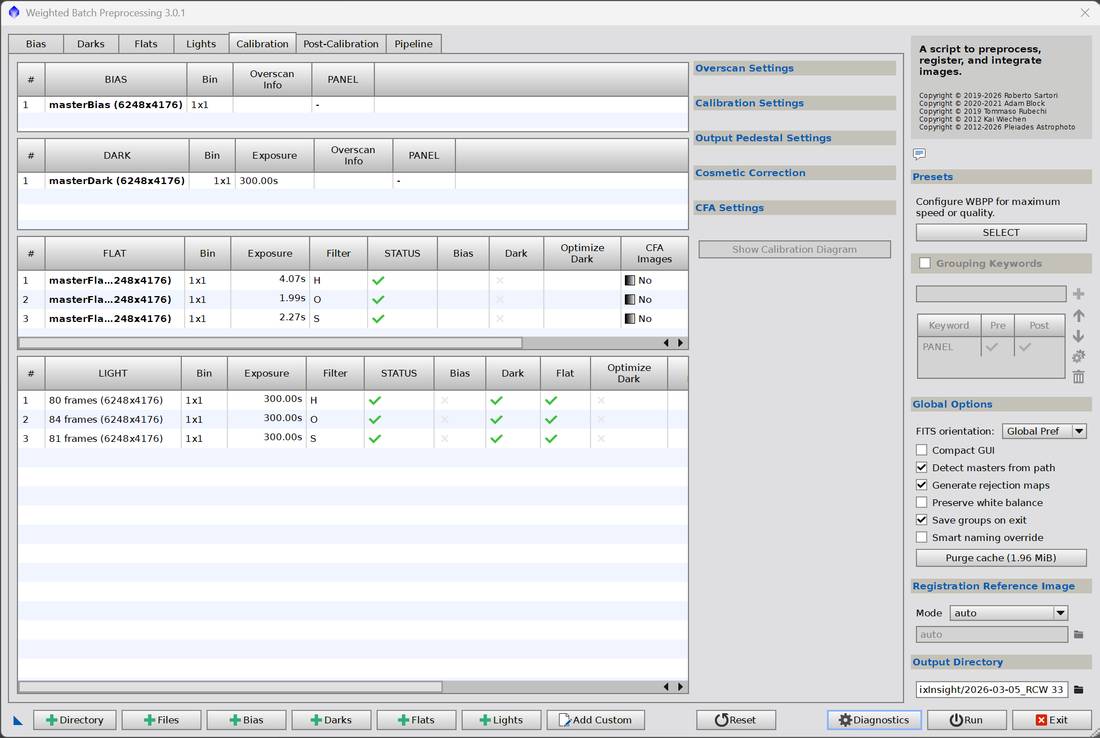
| Option | Setting |
|---|---|
| FITS orientation | Global Pref |
| Compact GUI | ☐ |
| Detect masters from path | ✓ |
| Generate rejection maps | ✓ |
| Preserve white balance | ☐ |
| Save groups on exit | ✓ |
| Smart naming override | ☐ |
| Registration Reference Image | Mode auto (mosaic uses auto by PANEL) |
| Grouping Keywords | ☐ for single panel |
The PANEL keyword stays listed but greyed when Grouping Keywords is unticked — the definition persists between sessions. A mosaic run only needs the checkbox re-ticked, not the keyword re-entered.
The Calibration tab confirms masterBias, masterDark (300 s) and three masterFlats (H 4.07 s, O 1.99 s, S 2.27 s) were built and applied, with all lights showing Dark and Flat ticked and Bias not used.
9Check the Execution Monitor
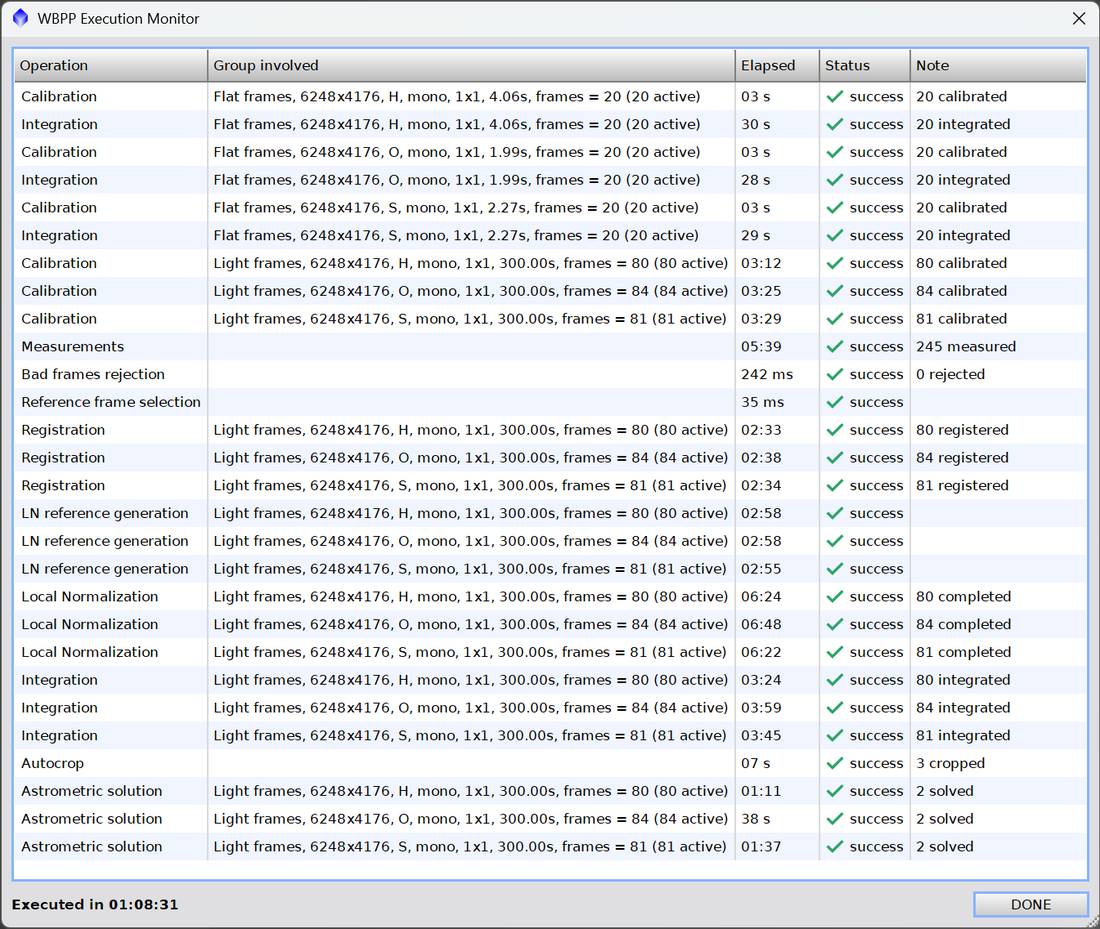
Every row should read success.
| Stage | Note |
|---|---|
| Calibration + Integration (flats) | 20 frames per filter |
| Calibration (lights) | 80 H / 84 O / 81 S |
| Measurements | 245 measured |
| Bad frames rejection | 0 rejected |
| Reference frame selection | — |
| Registration | all registered |
| LN reference generation | per filter |
| Local Normalization | all completed |
| Integration | one master per filter |
| Autocrop | 3 cropped |
| Astrometric solution | 2 solved per filter |
Astrometry runs automatically. "2 solved" per filter is the master and its autocrop variant. This is why ImageSolver is usually unnecessary later — including in the mosaic workflow.
If any row errors: identify the offending files from the console, delete them, and re-run rather than trying to salvage.
10Save the Smart Report, then exit
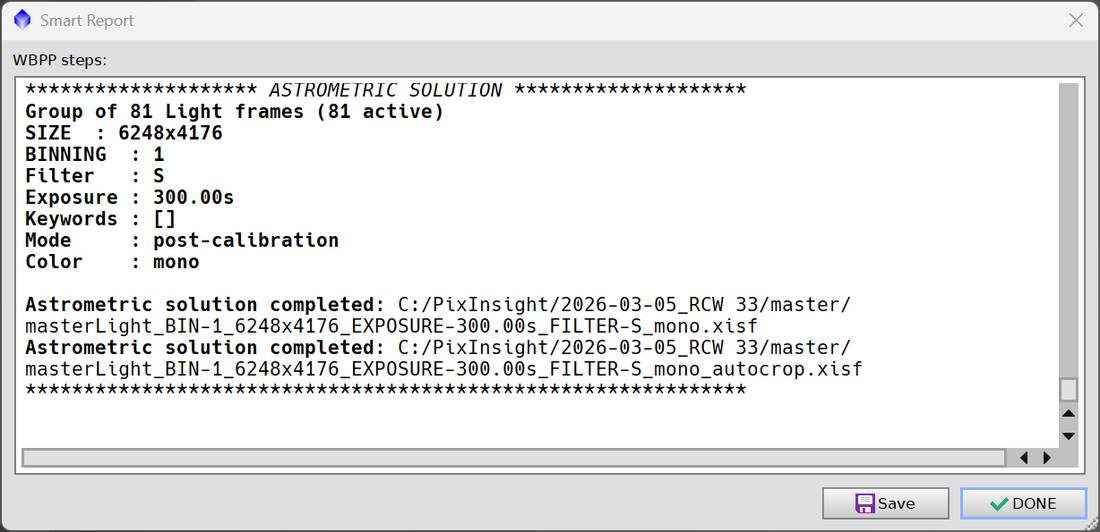
Hit Save and put it in the log folder. Two uses:
- Diagnosing bad frames — it names specific files, which the Execution Monitor summary doesn't.
- Confirming what was solved — the tail lists astrometric solutions by full path.
It also reports Keywords : [] — empty for a single-panel run, [PANEL] for a
mosaic. A way to verify the grouping keyword took effect.
Then Exit WBPP. "Save groups on exit" being ticked preserves the group structure if you need to come back.
Part 4 — Linear processing
11Open the masters
File → Open, navigate to master/, select the three _autocrop files:
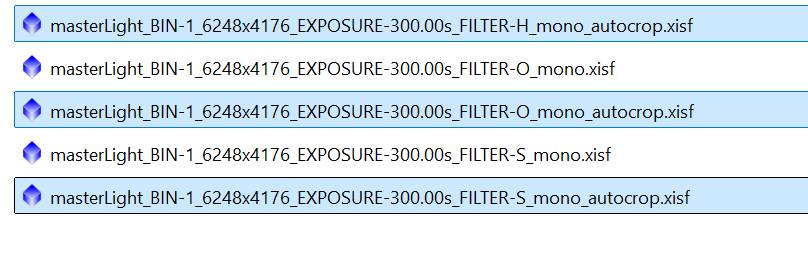
masterLight_BIN-1_6248x4176_EXPOSURE-300.00s_FILTER-H_mono_autocrop.xisf
masterLight_BIN-1_6248x4176_EXPOSURE-300.00s_FILTER-O_mono_autocrop.xisf
masterLight_BIN-1_6248x4176_EXPOSURE-300.00s_FILTER-S_mono_autocrop.xisf
Use the _autocrop versions — ragged registration borders already trimmed.
Each file opens as two images, so three files give six windows. Apply STF AutoStretch to see which holds data and close the empty one. This is standard PixInsight behaviour with no known way to disable it.
Rename the surviving views to H, O, S for clarity in later dropdowns.
12Build the ImageContainer
Right-click the workspace to create an ImageContainer (or Ctrl+Alt+I), then click Add Views — the icon with the green plus:

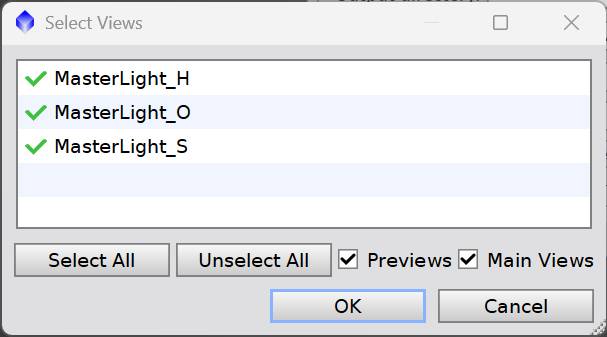
Select All, leave Previews and Main Views ticked, OK.
The container drives the next four processes — configure each process, then drag the ImageContainer's triangle onto the bottom bar of the process dialog and all three channels get identical parameters in one action.
13BlurXTerminator
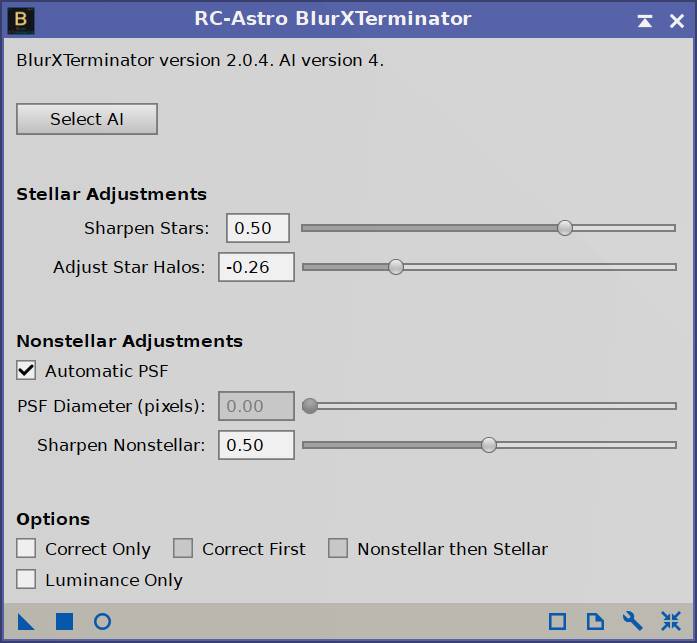
v2.0.4, AI v4:
| Setting | Value |
|---|---|
| Sharpen Stars | 0.50 |
| Adjust Star Halos | −0.26 |
| Automatic PSF | ✓ |
| PSF Diameter | 0.00 (greyed) |
| Sharpen Nonstellar | 0.50 |
| Correct Only / Correct First / Nonstellar then Stellar | ☐ |
| Luminance Only | ☐ |
BXT requires linear data.
14GradientCorrection
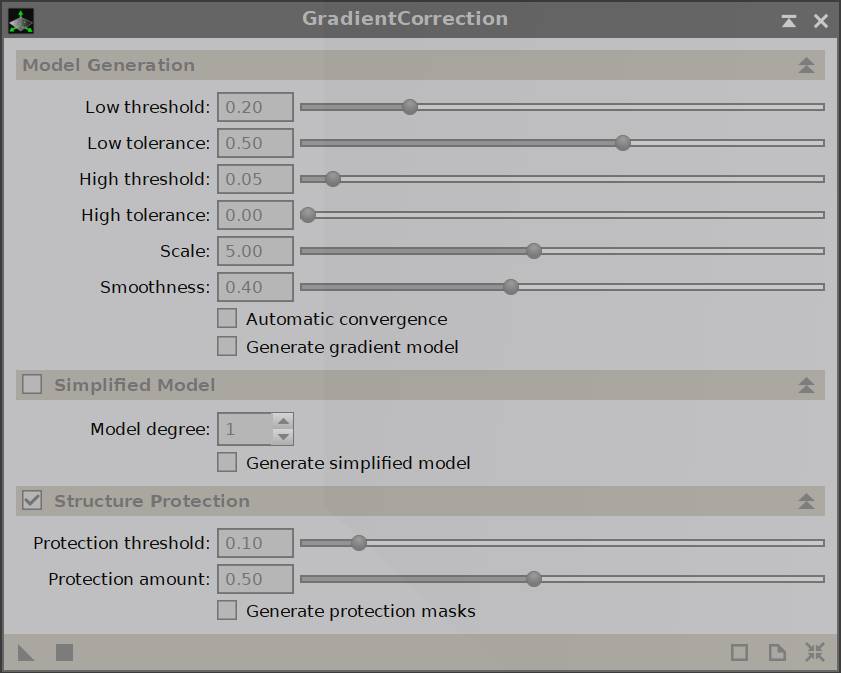
| Setting | Value |
|---|---|
| Low threshold | 0.20 |
| Low tolerance | 0.50 |
| High threshold | 0.05 |
| High tolerance | 0.00 |
| Scale | 5.00 |
| Smoothness | 0.40 |
| Automatic convergence | ☐ |
| Generate gradient model | ☐ |
| Simplified Model | ☐ (degree 1) |
| Structure Protection | ✓ threshold 0.10, amount 0.50 |
| Generate protection masks | ☐ |
15NoiseXTerminator
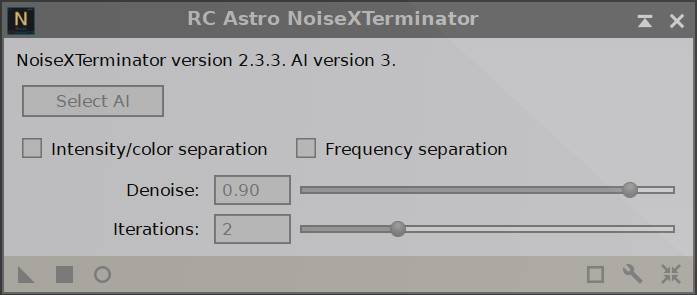
v2.3.3, AI v3:
| Setting | Value |
|---|---|
| Intensity/color separation | ☐ |
| Frequency separation | ☐ |
| Denoise | 0.90 |
| Iterations | 2 |
Linear stage order: BXT → GradientCorrection → NXT.
These three settings sets have been identical across every documented project — they're standing values, not per-image tuning.
Part 5 — Star separation
16StarXTerminator
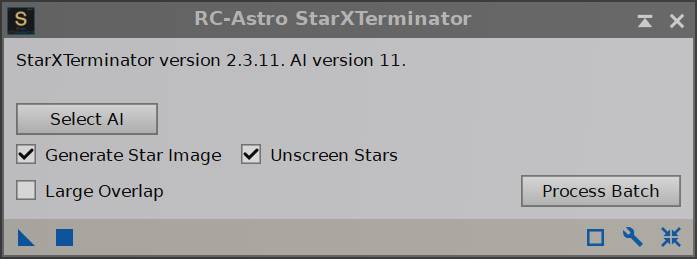
v2.3.11, AI v11. Run via the ImageContainer, same as the previous three — not the built-in Process Batch button, which exists but isn't used here.
| Setting | Value |
|---|---|
| Generate Star Image | ✓ |
| Unscreen Stars | ✓ |
| Large Overlap | ☐ |
Generate Star Image produces the separate stars-only images — without it you'd have nothing to feed NB to RGB Stars at Step 20.
Unscreen Stars extracts stars via an unscreen operation rather than a straight subtraction, which is what makes them recombine cleanly with Screen mode at Step 21. The two settings are a matched pair.
Result: six images
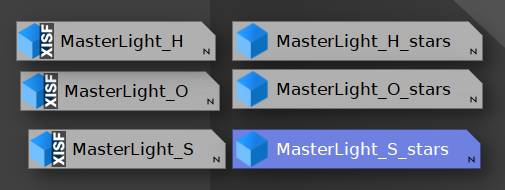
MasterLight_H          MasterLight_H_stars
MasterLight_O          MasterLight_O_stars
MasterLight_S          MasterLight_S_stars
Left column: the original views, now starless — StarXTerminator modified them
in place. Right column: extracted stars, auto-named with _stars.
Naming is unambiguous here, unlike most stages in this workflow. No renaming needed.
The starless images keep the XISF badge because they're still backed by files; the star images are memory-only until saved.
Both sets are still linear.
Part 6 — Palette and stretch
17PerfectPalettePicker
Script → SetiAstro → PerfectPalettePicker, or right-click the workspace and execute in the global context.
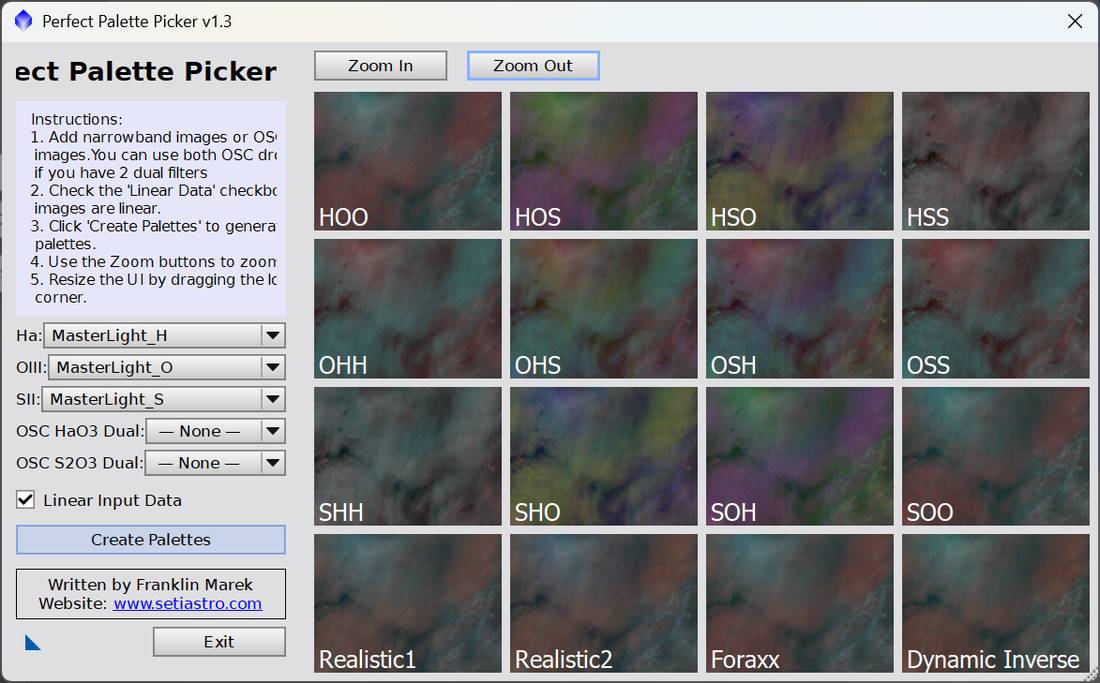
v1.3, Franklin Marek (setiastro.com).
| Field | Value |
|---|---|
| Ha | MasterLight_H |
| OIII | MasterLight_O |
| SII | MasterLight_S |
| OSC HaO3 Dual | — None — |
| OSC S2O3 Dual | — None — |
| Linear Input Data | ✓ |
Linear Input Data must be ticked. StarXTerminator ran on linear data and nothing has stretched these yet. This checkbox is the mechanism behind "PPP does the stretch" — it performs the linear-to-non-linear conversion as part of building the palette.
Click Create Palettes to generate all sixteen previews, then click the one you want — SHO in these projects.
Available: HOO, HOS, HSO, HSS, OHH, OHS, OSH, OSS, SHH, SHO, SOH, SOO, Realistic1, Realistic2, Foraxx, Dynamic Inverse.
Zoom In / Zoom Out adjust the preview tiles; the UI resizes by dragging the lower corner.
Now non-linear.
18GeneralizedHyperbolicStretch
Open the real-time preview — the round circle button at the bottom — and work with it open so both passes can be judged visually.
Pass 1 — Linear (black point)
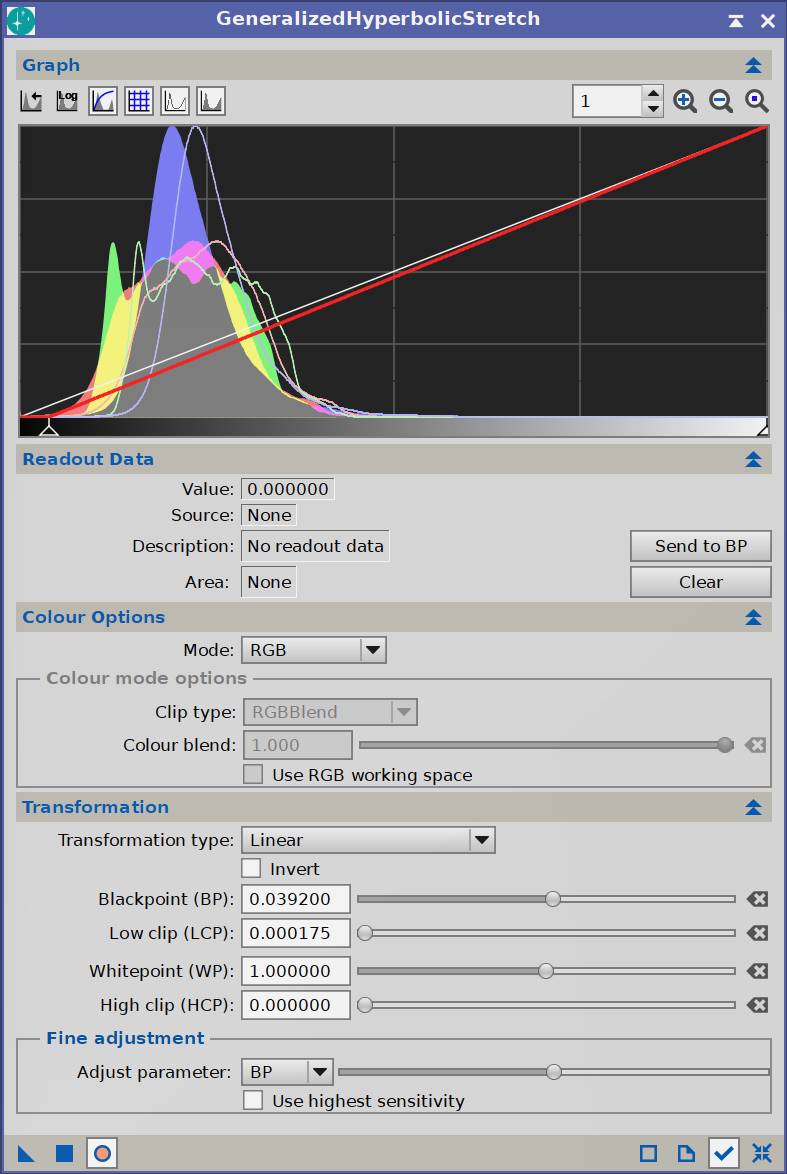
Set transformation type to Linear and bring the black point up to the foot of the histogram — where the data begins, not into it. Then Apply (the square button).
| Setting | Value |
|---|---|
| Mode | RGB |
| Clip type / Colour blend | RGBBlend / 1.000 (greyed) |
| Use RGB working space | ☐ |
| Transformation type | Linear |
| Invert | ☐ |
| Blackpoint (BP) | 0.039200 |
| Low clip (LCP) | 0.000175 |
| Whitepoint (WP) | 1.000000 |
| High clip (HCP) | 0.000000 |
| Adjust parameter | BP |
| Use highest sensitivity | ☐ |
Watch Low clip. LCP of 0.000175 means a small fraction of pixels are being clipped. Normal and harmless at this level, but it's the number that tells you how much you're throwing away if BP goes too far.
Pass 2 — Generalised Hyperbolic
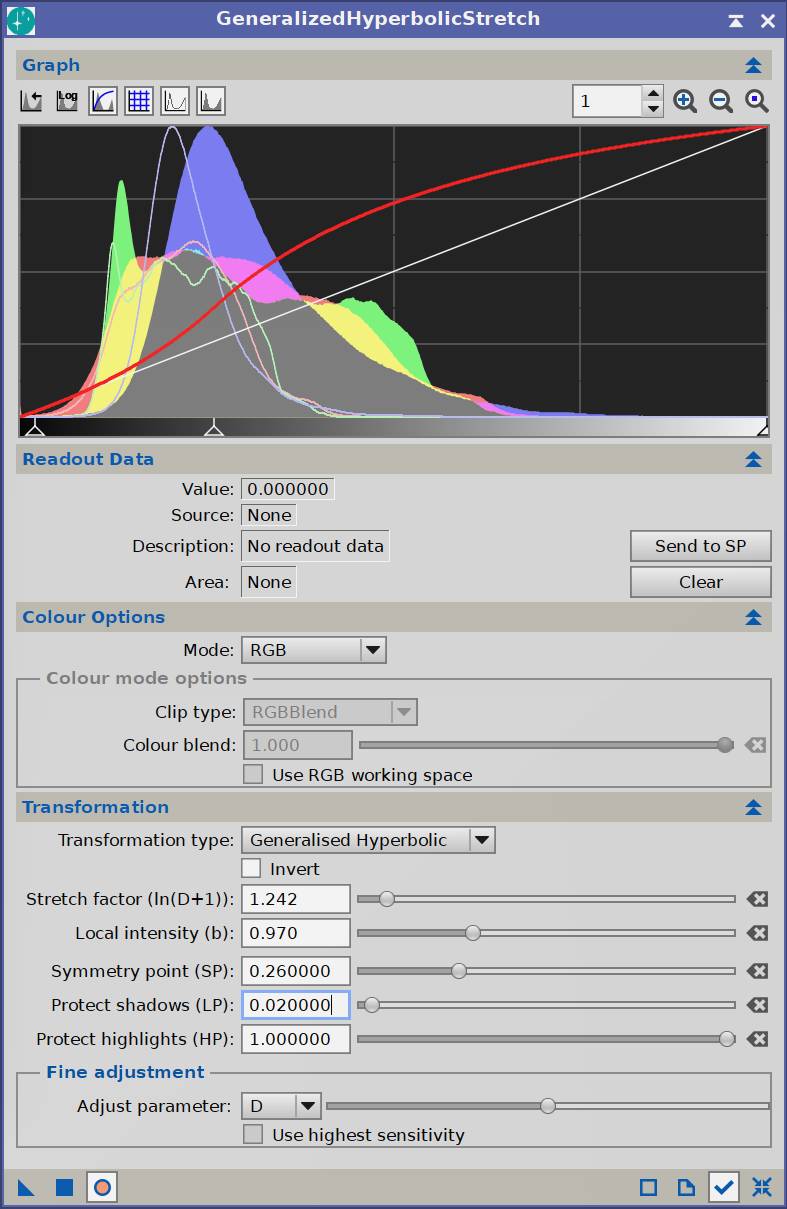
Switch transformation type to Generalised Hyperbolic, move the symmetry point to the histogram peak, adjust the stretch, Apply, then close the preview.
| Setting | Value |
|---|---|
| Transformation type | Generalised Hyperbolic |
| Invert | ☐ |
| Stretch factor (ln(D+1)) | 1.242 |
| Local intensity (b) | 0.970 |
| Symmetry point (SP) | 0.260000 |
| Protect shadows (LP) | 0.020000 |
| Protect highlights (HP) | 1.000000 |
| Adjust parameter | D |
| Use highest sensitivity | ☐ |
The curve rises steeply from the origin and flattens toward the top — lifting shadows and midtones hard while compressing highlights.
Symmetry point marks where the stretch is centred. Placing it at the main histogram peak (0.26 after the linear pass) is what pulls that peak rightward into the midtones.
Protect shadows at 0.02 holds the darkest end down so the background doesn't lift with the nebulosity — this is what keeps the sky from going milky.
The Readout button changes from "Send to BP" in pass 1 to "Send to SP" here — it targets whichever parameter suits the current transformation type, so you can click on the image to set the value directly.
19NarrowbandNormalization
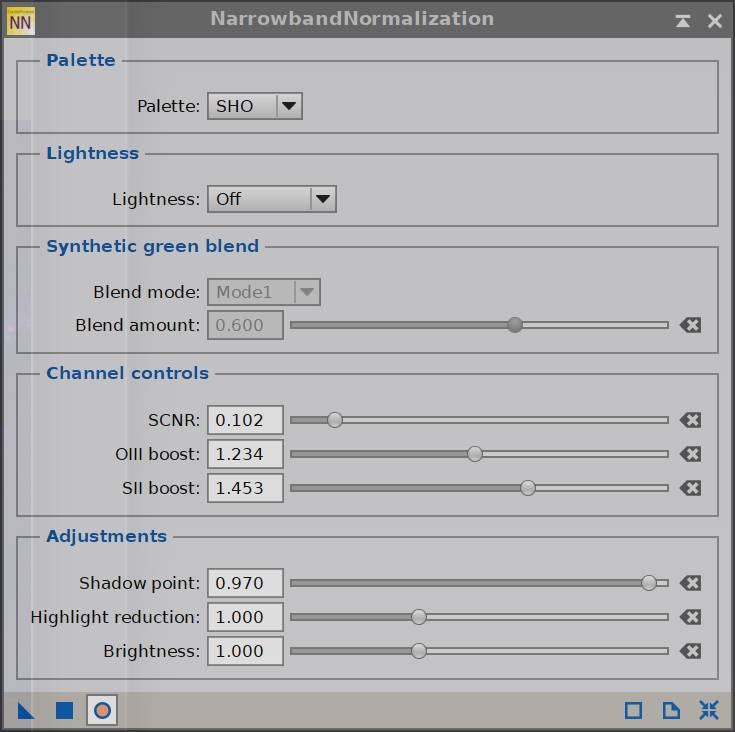
| Section | Setting | RCW 33 | RCW 108 |
|---|---|---|---|
| Palette | Palette | SHO | SHO |
| Lightness | Lightness | Off | Off |
| Synthetic green blend | Blend mode / amount | Mode1 / 0.600 (greyed) | same |
| Channel controls | SCNR | 0.102 | 0.163 |
| OIII boost | 1.234 | 1.572 | |
| SII boost | 1.453 | 1.482 | |
| Adjustments | Shadow point | 0.970 | 1.000 |
| Highlight reduction | 1.000 | 1.026 | |
| Brightness | 1.000 | 1.055 |
Every value is per-image, but the pattern holds across both projects: SCNR stays low, SII boost carries the most weight.
⚠ Be careful with SCNR
SCNR removes green rather than rebalancing it, so it takes real signal with it and loses detail.
Push the SII boost first — raising the SII contribution suppresses green by changing the balance, discarding nothing. Then use SCNR only to clean up what remains. Both documented runs sit near the bottom of the SCNR slider.
Synthetic green blend is greyed out — it becomes available under different palette or lightness settings. Not used.
Part 7 — Stars and recombination
20NB to RGB Stars
From the menu, or execute on the active view.
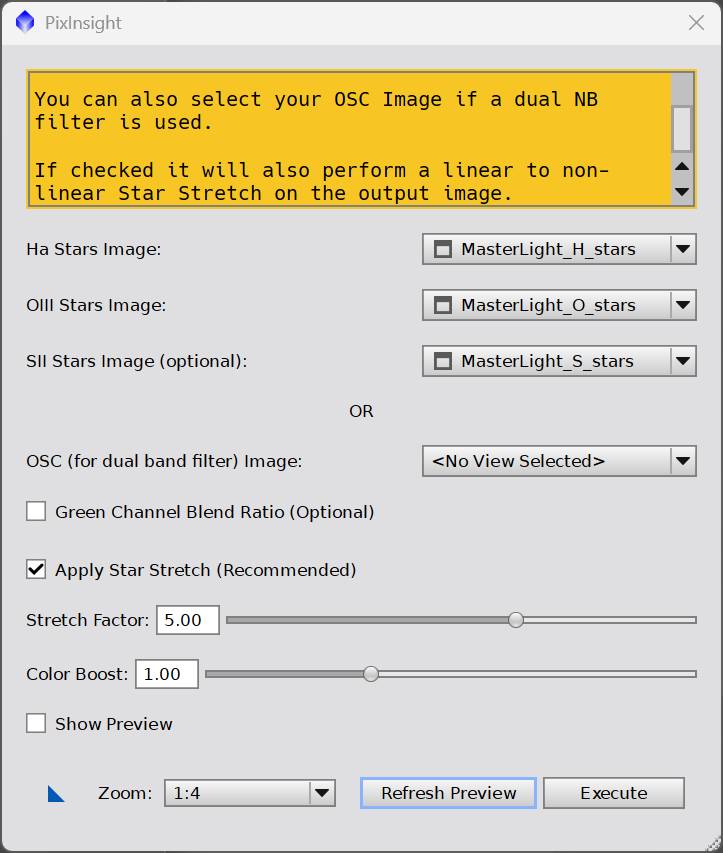
| Field | Value |
|---|---|
| Ha Stars Image | MasterLight_H_stars |
| OIII Stars Image | MasterLight_O_stars |
| SII Stars Image (optional) | MasterLight_S_stars |
| OSC (for dual band filter) Image | — None — |
| Green Channel Blend Ratio | ☐ |
| Apply Star Stretch (Recommended) | ✓ |
| Stretch Factor | 5.00 |
| Color Boost | 1.00 |
| Show Preview | ☐ |
Converts narrowband stars into natural-looking RGB. Narrowband stars are otherwise badly coloured — magenta or cyan depending on palette — because the filters don't sample the visual spectrum.
⚠ Don't forget the star stretch
Apply Star Stretch must be ticked. The star images came out of StarXTerminator linear and nothing has touched them since — PerfectPalettePicker and GHS only worked on the starless side.
This is where the stars cross to non-linear. Leave it unticked and they'll be nearly invisible against the stretched background at Step 21.
Ticking the box is what reveals Stretch Factor and Color Boost.
Use Refresh Preview to check, then Execute.
21Combine Images
Scripts → Toolbox → Combine Images (v1.11, Jürgen Terpe)
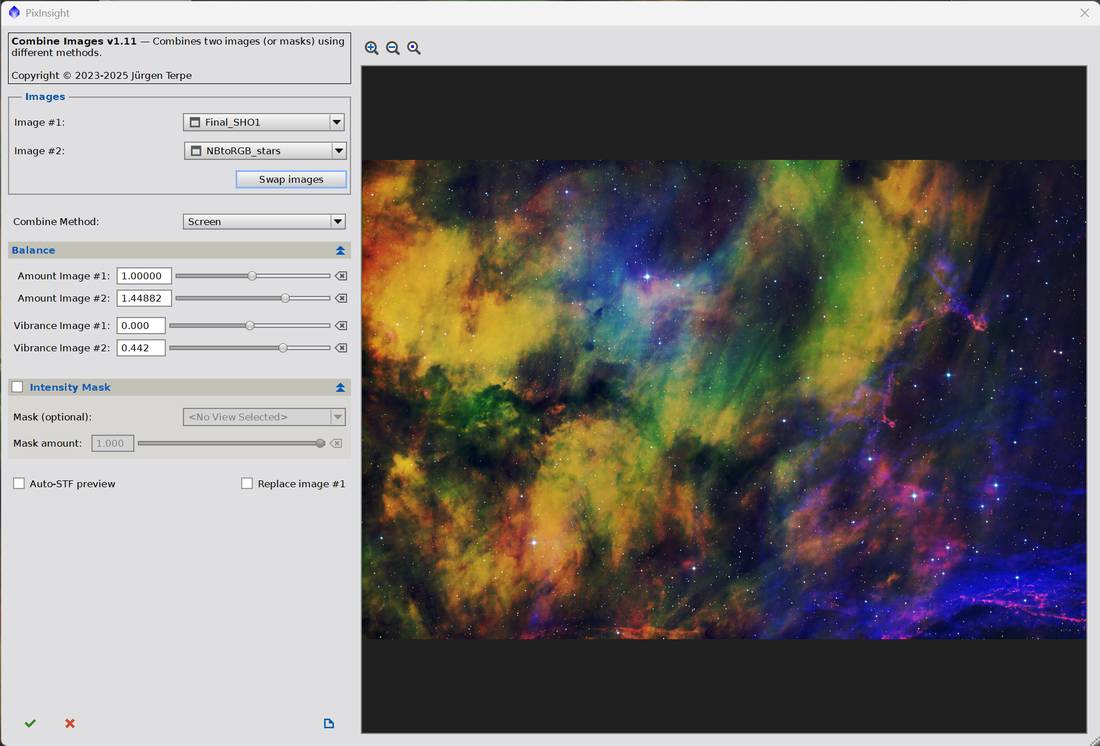
| Setting | RCW 33 | RCW 108 |
|---|---|---|
| Image #1 | Final_SHO1 (starless) | Final_SHO |
| Image #2 | NBtoRGB_stars | NBtoRGB_stars |
| Combine Method | Screen | Screen |
| Amount Image #1 | 1.00000 | 1.00000 |
| Amount Image #2 | 1.44882 | 1.61417 |
| Vibrance Image #1 | 0.000 | 0.000 |
| Vibrance Image #2 | 0.442 | 0.562 |
| Intensity Mask | ☐ | ☐ |
| Auto-STF preview | ☐ | ☐ |
| Replace image #1 | ☐ | ☐ |
Order matters. Image #1 is the starless base, Image #2 the stars. Use Swap images if they load the wrong way round.
Screen is the right method for adding stars back — it adds light without clipping, so bright stars sit on top of the nebulosity rather than replacing it. It also pairs with Unscreen Stars at Step 16.
Boosting the stars
This is where the stars get their final character, not just where they're pasted back:
- Amount Image #2 above 1.0 makes them brighter and more prominent. Both documented runs sit around 1.4–1.6; left at 1.0 they look weak against a heavily stretched background.
- Vibrance Image #2 saturates star colour. Both runs around 0.44–0.56.
Image #1 stays at 1.000 / 0.000 every time. The asymmetry is the technique — saturate the stars while leaving the palette exactly as tuned at Step 19.
Judge against the live preview, then commit with the green tick at bottom left. Leave Replace image #1 unticked to keep the starless version intact.
Part 8 — Finishing
22ImageSolver
Script → Astrometry → ImageSolver (v6.4.2)
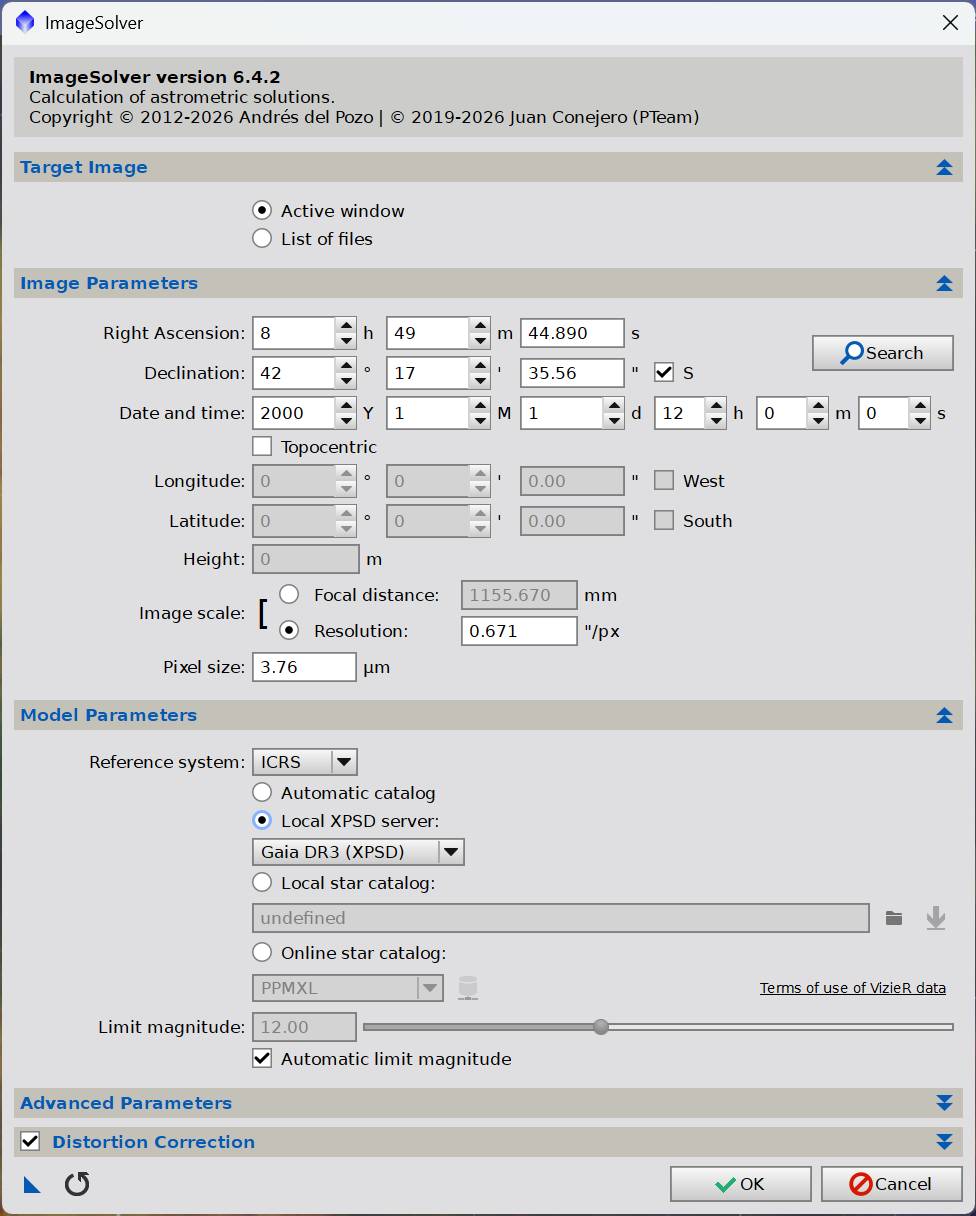
| Section | Setting | Value |
|---|---|---|
| Target Image | Active window | |
| Image Parameters | Right Ascension | e.g. 8h 49m 44.890s |
| Declination | e.g. −42° 17′ 35.56″ (S ticked) | |
| Date and time | 2000-01-01 12:00:00 | |
| Topocentric | ☐ | |
| Image scale | Resolution 0.671 ″/px | |
| Pixel size | 3.76 µm | |
| Model Parameters | Reference system | ICRS |
| Catalog | Local XPSD server — Gaia DR3 (XPSD) | |
| Automatic limit magnitude | ✓ | |
| Distortion Correction | ✓ |
The Search button resolves a target name to coordinates — easier than typing RA/Dec by hand.
⚠ Open question — the Gaia DR3 selection doesn't persist
ImageSolver doesn't remember the catalog choice between sessions. Some of its settings appear to be stored per-instance rather than globally, so what you get on opening depends on how the script was launched.
Likely workaround: configure it, drag the triangle to the workspace to make a process icon, and include it in the saved icon set from Step 1 — the same approach already used for every other tool. Worth confirming on the PixInsight forum for a definitive answer.
Relationship to the mosaic workflow
Parts 1–4 are shared. The mosaic workflow inserts astrometry, reprojection, trimming and the photometric join between the linear stage and star separation:
STANDARD                          MOSAIC
─────────────────────────────────────────────────────────────
Process icon set (one-off)        Process icon set (one-off)
Blink — cull bad frames           Blink — cull bad frames
WBPP                              WBPP (+ PANEL grouping keyword)
_autocrop masters                 _autocrop masters
BXT → GC → NXT                    BXT → GC → NXT
                                  ├─ ImageSolver         → _ast
                                  ├─ MosaicByCoordinates → _ra
                                  ├─ TrimMosaicTile      → _trim
                                  ├─ PhotometricMosaic ×3
                                  ├─ DynamicCrop ×3
                                  └─ FastRotation + re-solve
StarXTerminator (linear)          StarXTerminator (linear)
PerfectPalettePicker (+ stretch)  PerfectPalettePicker (+ stretch)
GeneralizedHyperbolicStretch      GeneralizedHyperbolicStretch
NarrowbandNormalization           NarrowbandNormalization
NB to RGB Stars                   NB to RGB Stars
Combine Images                    Combine Images
Everything from StarXTerminator onward is identical — by that point a mosaic is just a larger image.
Where the stretch happens
There is no single stretch step. The two halves of the image cross from linear to non-linear in different places:
| Stretched by | At step | |
|---|---|---|
| Starless channels | PerfectPalettePicker (Linear Input Data ✓) | 17 |
| Star images | NB to RGB Stars (Apply Star Stretch ✓) | 20 |
Both halves must be non-linear before Step 21 combines them. Forgetting the star stretch is the easiest mistake in this workflow.
Quick reference
1.  ONE-OFF SETUP — install processes/scripts, arrange icons in run order,
      Process Icons → Save Process Icons…   (reload each session)
2.  Blink — cull cloud, trails, tracking failures. Keep slightly soft frames.
3.  WBPP: Reset → Clear file lists ✓ + Purge cache ✓, parameters ☐
4.  Output directory = project root
5.  + Directory  (only if the root is clean)
6.  Diagnostics — found must equal added
7.  Post-Calibration tab — verify filter and frame counts
8.  Run
9.  Execution Monitor — all rows success; astrometry runs automatically
10. Save the Smart Report to the log folder, then Exit
    ─── linear ───
11. Open the three _autocrop masters; close the empty twin of each
12. ImageContainer → Add Views → Select All
13. BXT                  0.50 / −0.26 / auto PSF / 0.50
14. GradientCorrection   0.20 0.50 0.05 0.00 / scale 5 / smooth 0.40
15. NXT                  denoise 0.90, iterations 2
16. StarXTerminator      Generate Star Image ✓  Unscreen Stars ✓  → 6 images
    ─── PPP crosses to non-linear ───
17. PerfectPalettePicker — LINEAR INPUT DATA ✓ → Create Palettes → SHO
18. GHS  pass 1 Linear:   BP 0.0392  (foot of histogram)
         pass 2 Gen.Hyp:  D 1.242  b 0.970  SP 0.260  LP 0.020
19. NarrowbandNormalization — SHO; SII boost first, SCNR low (~0.10)
20. NB to RGB Stars — APPLY STAR STRETCH ✓ (stars are still linear!)
         factor 5.00, colour boost 1.00
21. Combine Images — #1 starless, #2 stars, Screen
         Amount #2 ~1.45   Vibrance #2 ~0.44   (#1 stays 1.000 / 0.000)
22. ImageSolver — 0.671 ″/px, 3.76 µm, Gaia DR3, distortion ✓
Gotchas index
| # | Gotcha |
|---|---|
| 1 | _autocrop files each open as two images — close the empty one. Standard behaviour, no known way to disable it. |
| 2 | Blink's per-image stretch button matters — a global stretch hides variation between frames |
| 3 | Don't add the whole directory if the project root has previous output in it |
| 4 | Diagnostics: found ≠ added means frames were silently rejected |
| 5 | WBPP solves the masters automatically — ImageSolver is usually unnecessary |
| 6 | The PANEL grouping keyword persists but greys out when unticked — re-tick, don't re-enter |
| 7 | PerfectPalettePicker performs the stretch — there is no HistogramTransformation step |
| 8 | GHS Low clip tells you how much you're clipping — watch it when moving BP |
| 9 | SCNR removes green and loses detail — boost SII first |
| 10 | Apply Star Stretch must be ticked — star images are still linear at Step 20 |
| 11 | Combine Images: boost only Image #2; #1 stays at 1.000 / 0.000 |
| 12 | ImageSolver doesn't remember the Gaia DR3 selection — save it as a process icon |